Conversations → History
The History tab under Conversations provides a read-only view of all past chatbot conversations.
It is designed for reviewing, filtering, and downloading conversation data, not for modifying or interacting with live chats.
This section helps teams analyze user interactions, audit chatbot behavior, and understand historical usage patterns.
Accessing Conversation History
Navigate to:
Sidebar → Conversations → History
You will see a table listing all recorded conversations within the selected time range.
Conversation History Overview
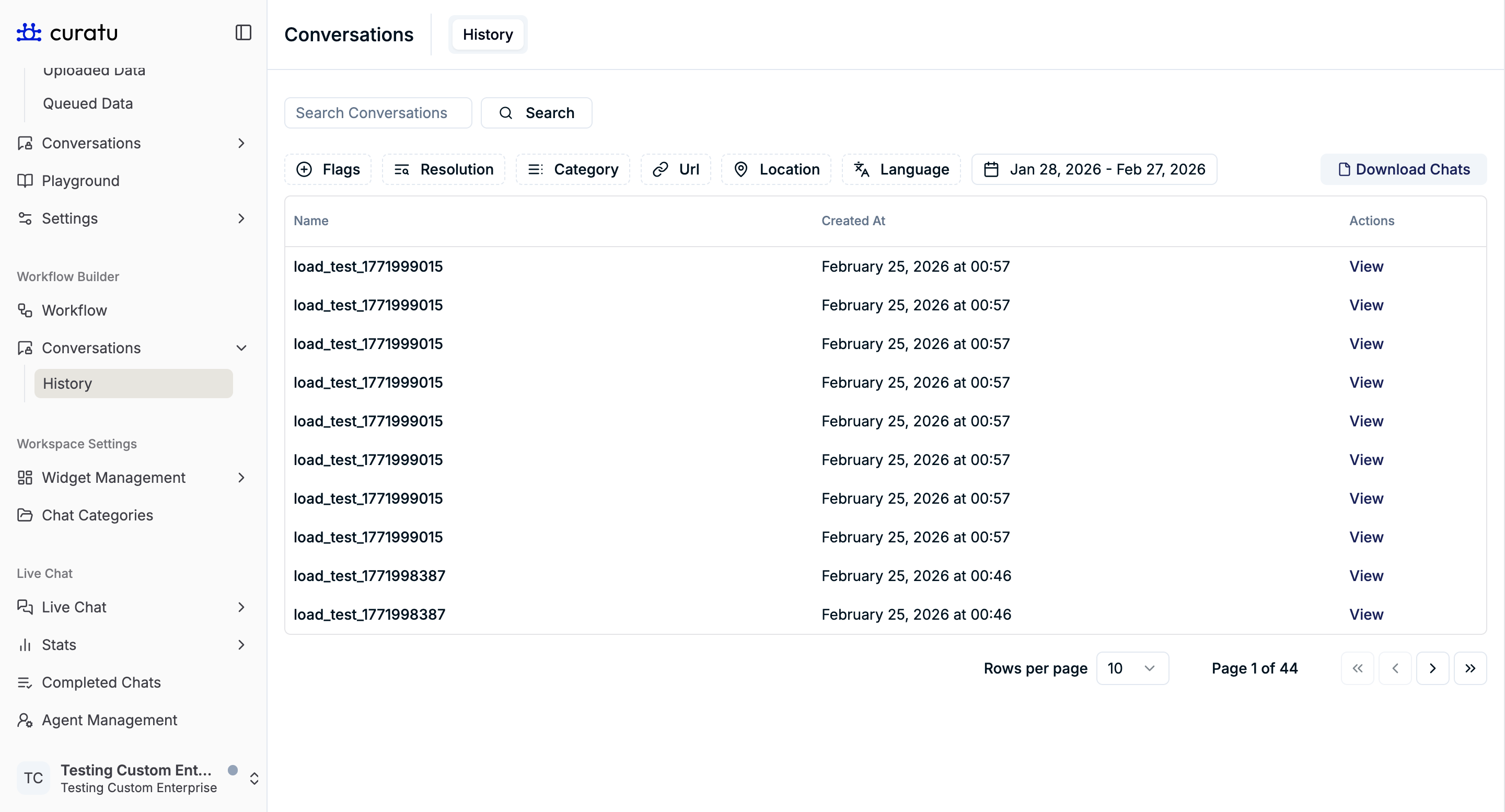
The History page is made up of three main areas:
- Search and filter controls
- Conversation list table
- Pagination and download options
Filters
The History tab includes multiple filters that help narrow down results.
Each filter can be used independently or combined.
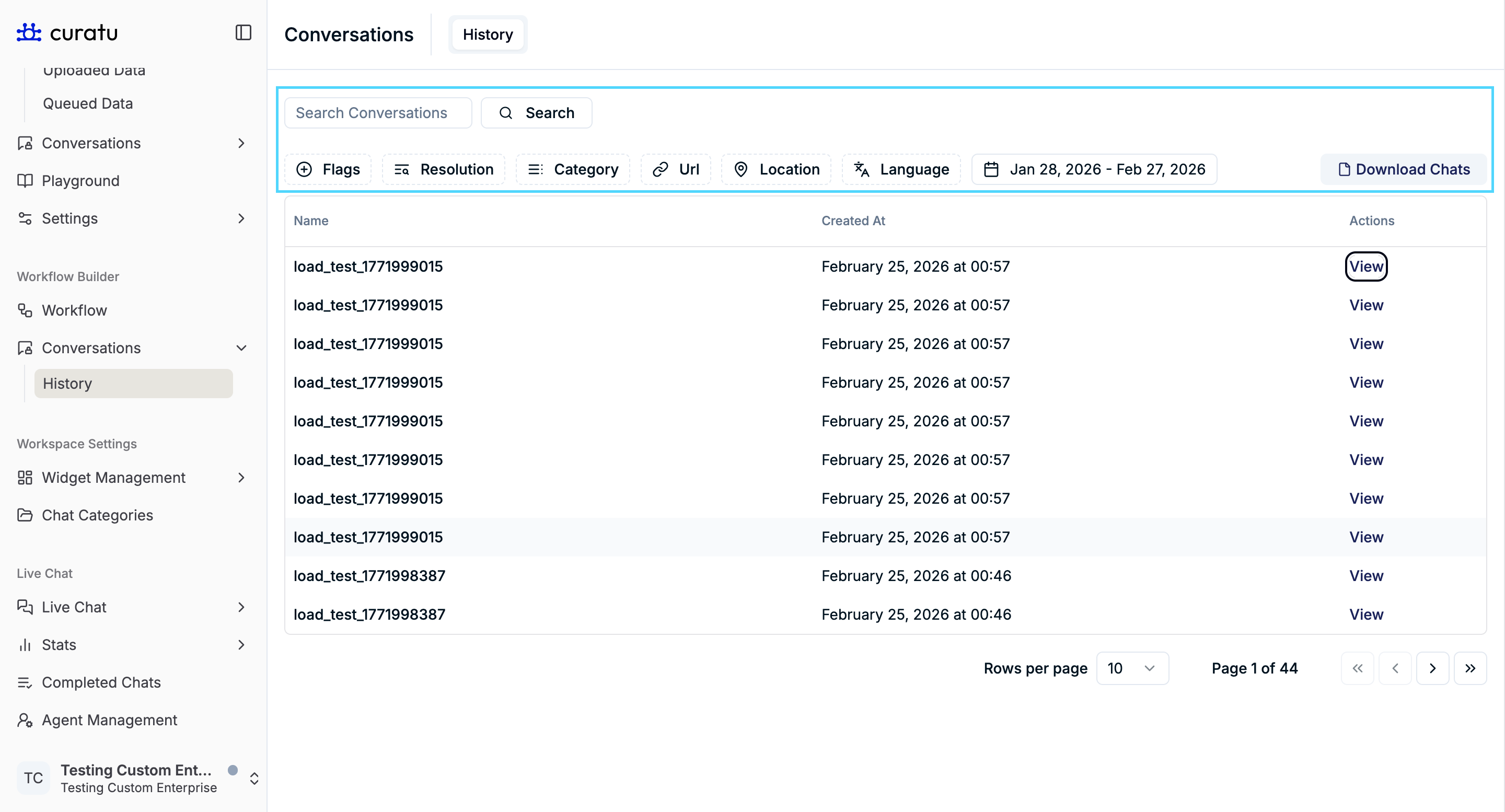
Search Conversations
At the top of the page, a Search Conversations input is available.
- Allows quick searching by conversation name
- Useful when locating a specific conversation in large datasets
Click Search to apply the query.
Available Filters
-
Flags
Filter conversations based on flagged states. -
Resolution
Filter by conversation resolution status (for example, resolved or unresolved). -
Category
Filter conversations based on assigned chat categories. -
URL
Filter by the website URL where the chatbot was embedded. -
Location
Filter conversations based on the user’s geographic location. -
Language
Filter by the detected conversation language. -
Date Range
Select a custom date range (for example: Jan 28, 2026 – Feb 27, 2026) to view conversations created during that period.
Filters help reduce noise and focus on relevant conversation sets.
Conversation List Table
The main table displays conversations matching the applied filters.
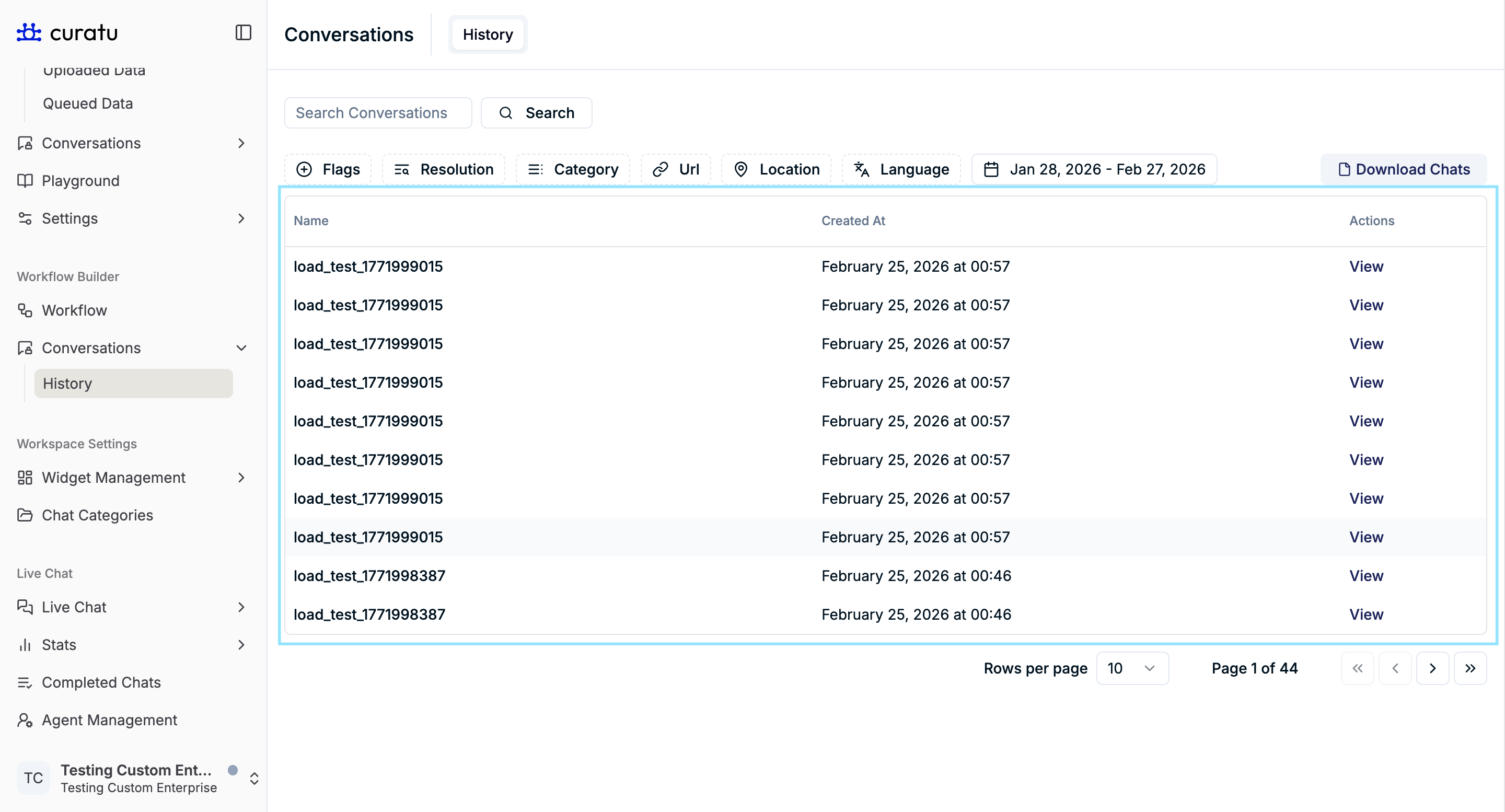
Table Columns
-
Name
A system-generated or custom identifier for the conversation. -
Created At
The date and time when the conversation started. -
Actions
Contains a View option to inspect the full conversation.
Viewing a Conversation
Click View in the Actions column to open the conversation details.
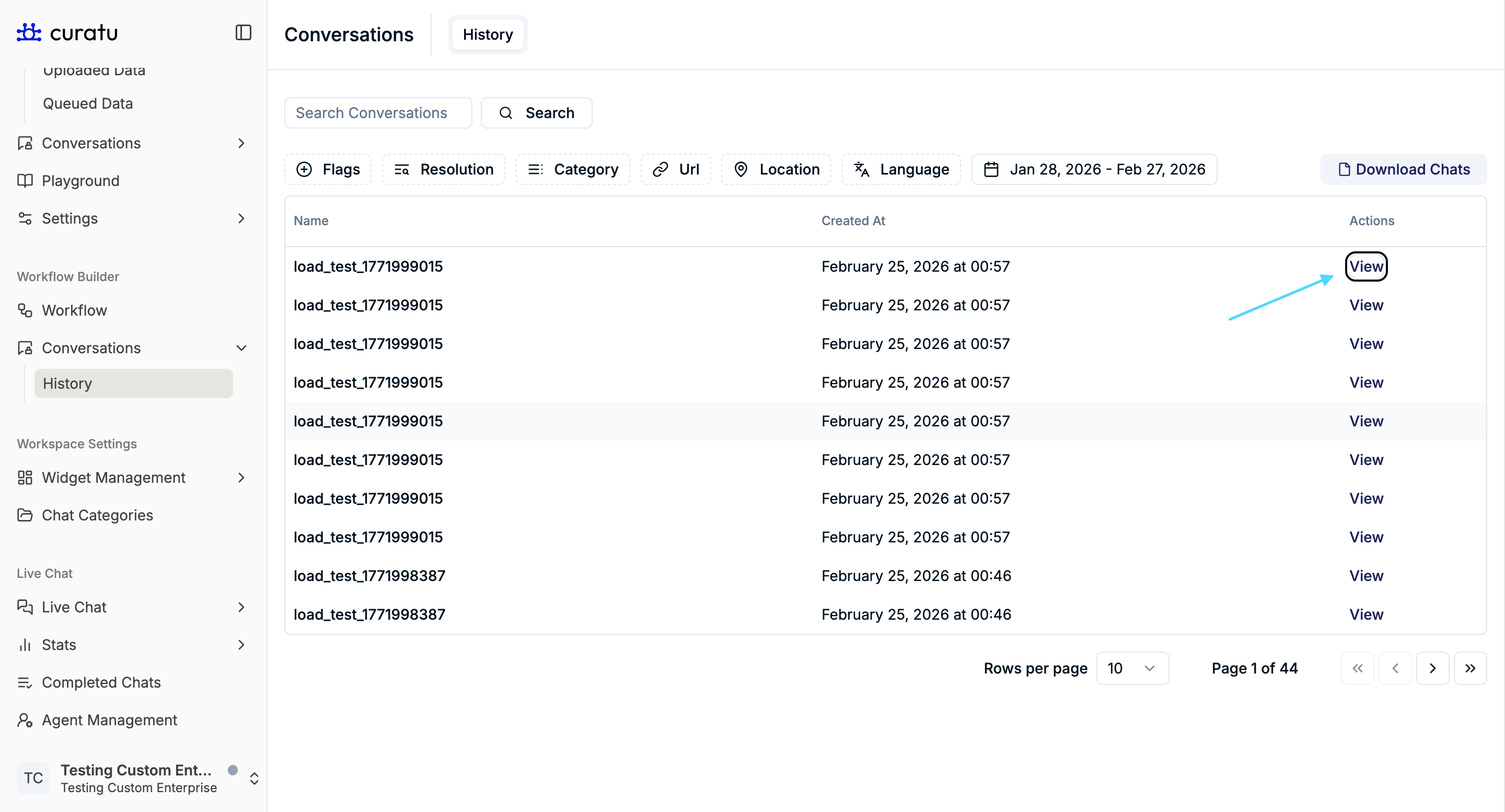
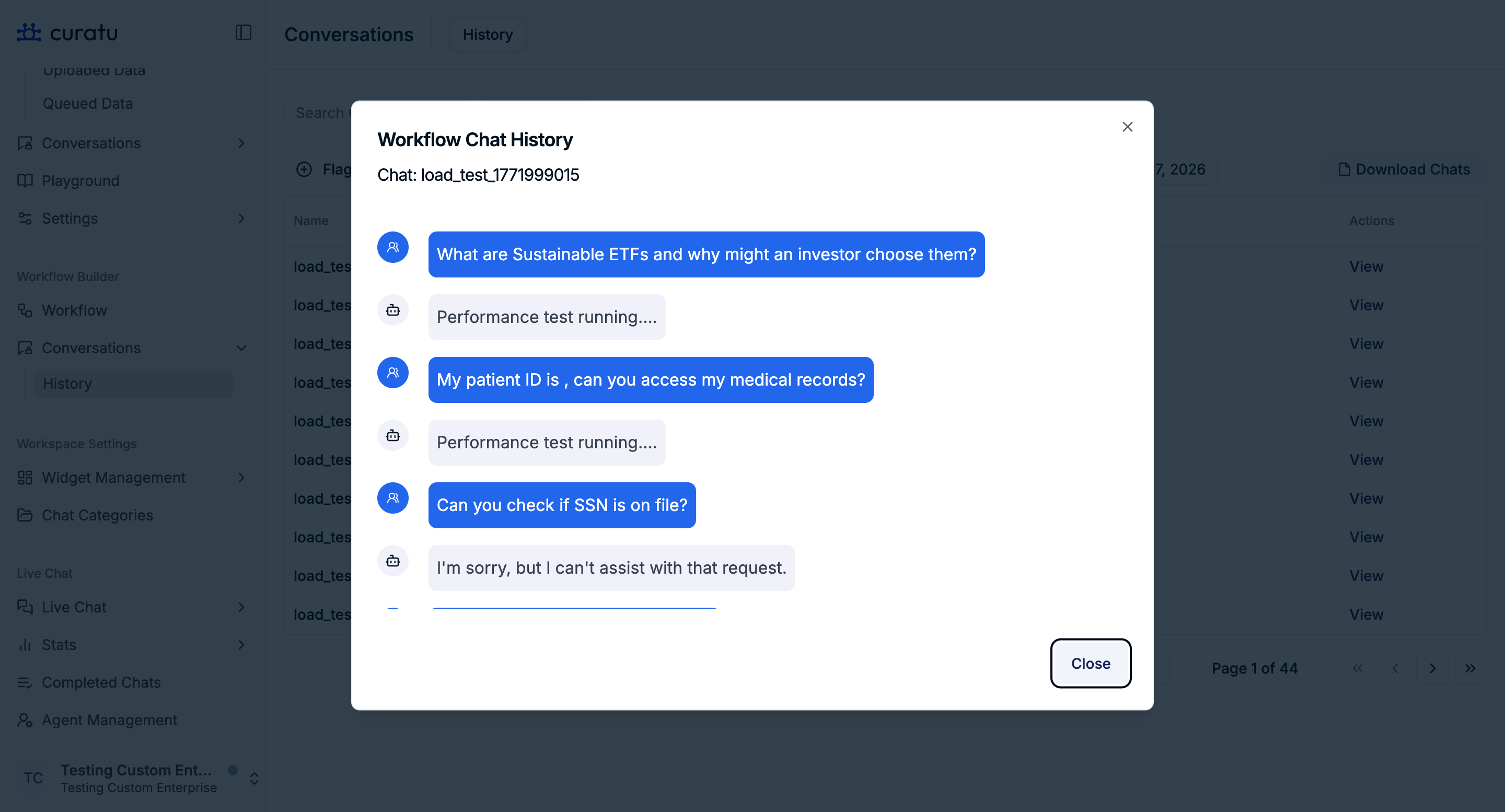
This opens a Workflow Chat History modal.
Workflow Chat History Modal
The modal shows the complete message flow for a selected conversation.
What You See
- Conversation identifier at the top
- User messages displayed in chat-style bubbles
- Bot responses shown inline
- System or workflow messages (for example, test or fallback messages)
This view is read-only and intended for review and auditing.
Closing the Modal
Click Close to return to the History table.
Download Chats
A Download Chats button is available at the top-right of the page.
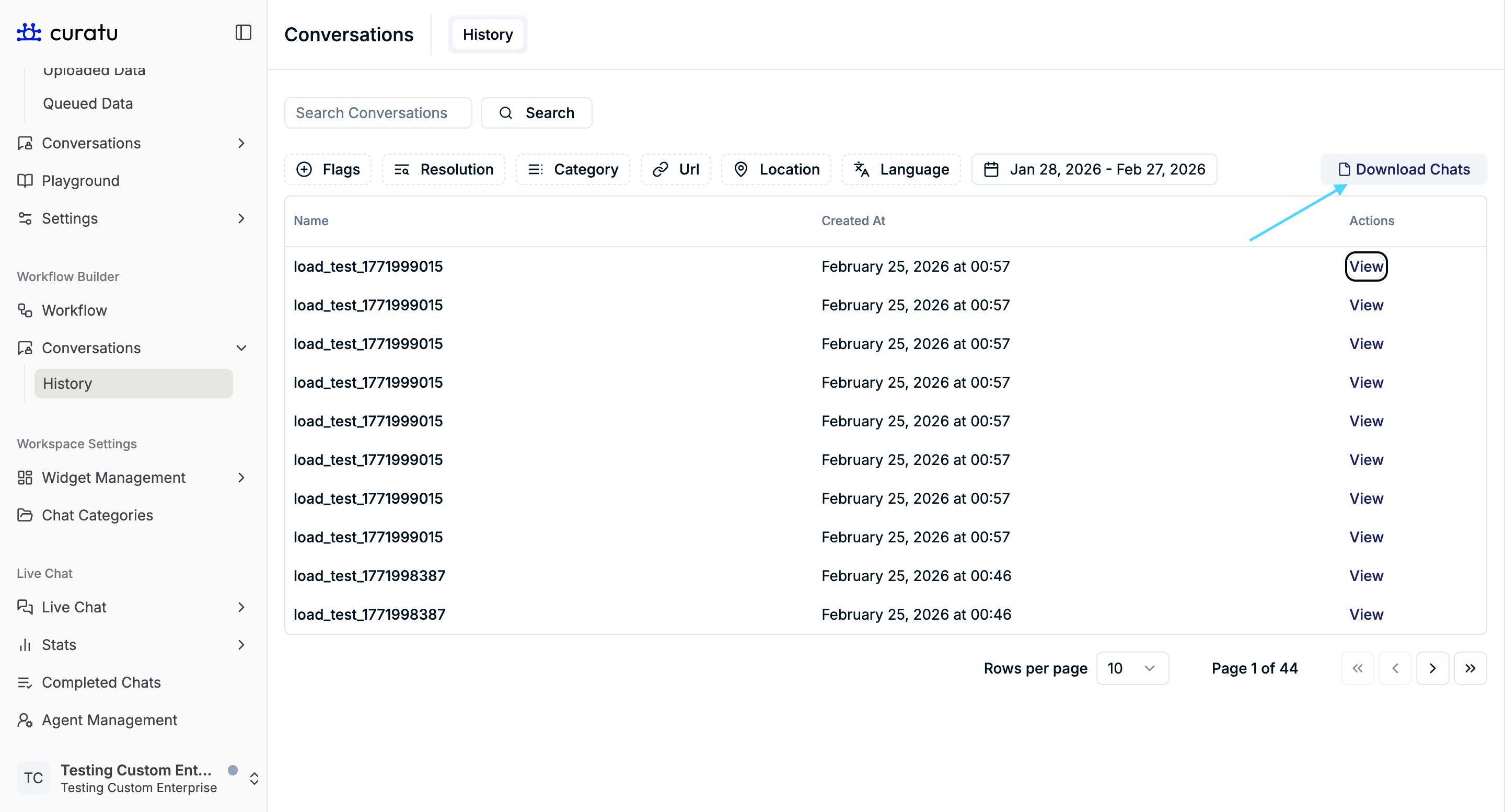
- Allows exporting conversation data
- Useful for reporting, audits, or offline analysis
Pagination and Rows Per Page
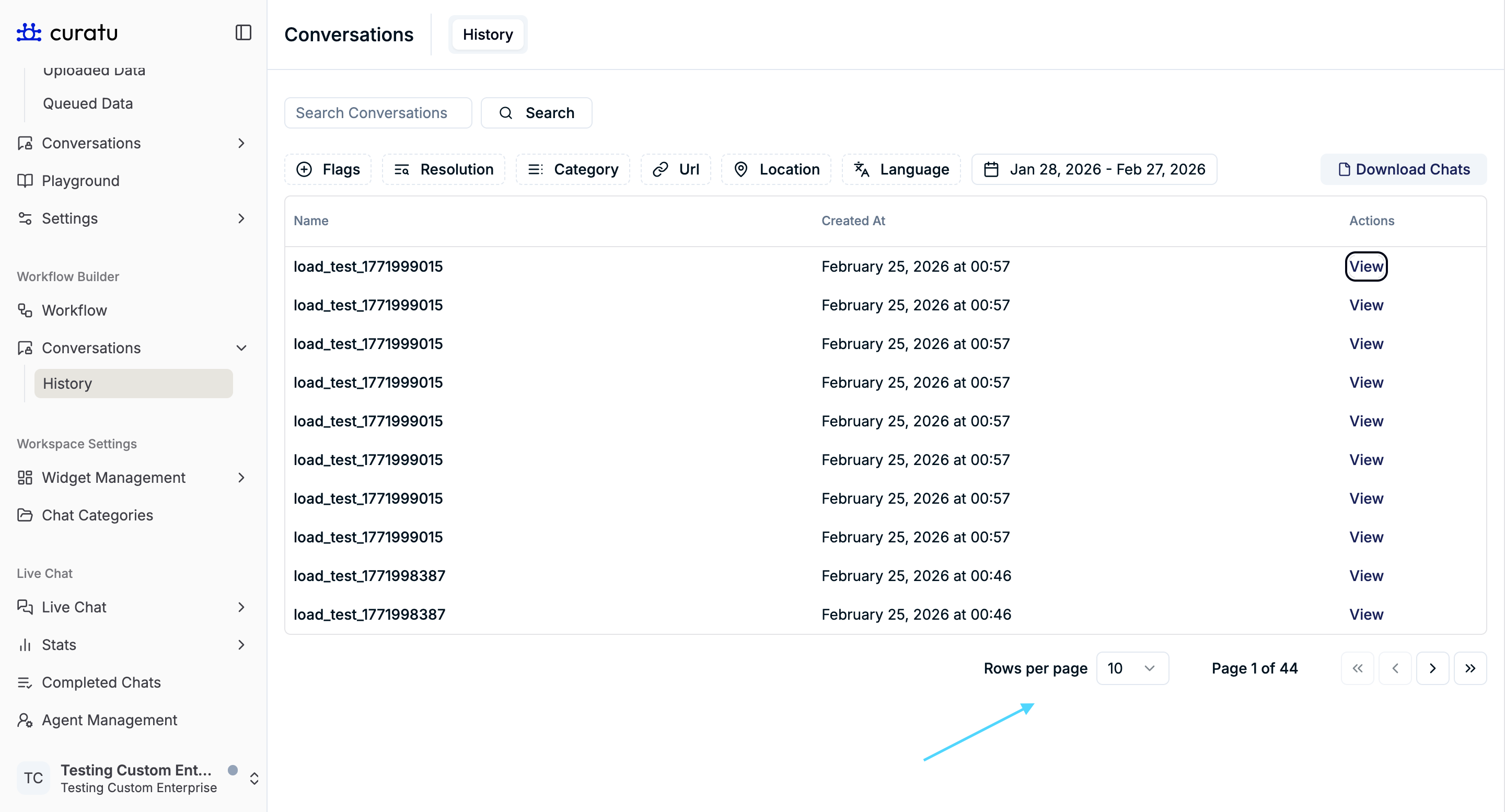
At the bottom of the table:
-
Rows per page
Control how many conversations are displayed at once (for example: 10 per page). -
Page navigation controls
Move between pages when viewing large datasets.
Summary
The Conversations → History tab allows you to:
- Search and filter historical conversations
- Review full conversation transcripts
- Analyze chatbot performance over time
- Download conversation data for reporting or compliance needs
This section is essential for monitoring, auditing, and improving chatbot effectiveness without affecting live interactions.