Chat Categories
The Chat Categories feature allows you to create, edit, and manage categories used to organize and classify chat conversations.
Categories help structure chat data, making conversations easier to analyze, filter, and understand at scale.
This feature focuses on classification and organization, not chatbot behavior or responses.
Accessing Chat Categories
Navigate to:
Sidebar → Widget Management → Chat Categories
You will land on the Create a Chat Category screen, where existing categories are displayed as cards.
Chat Categories Overview
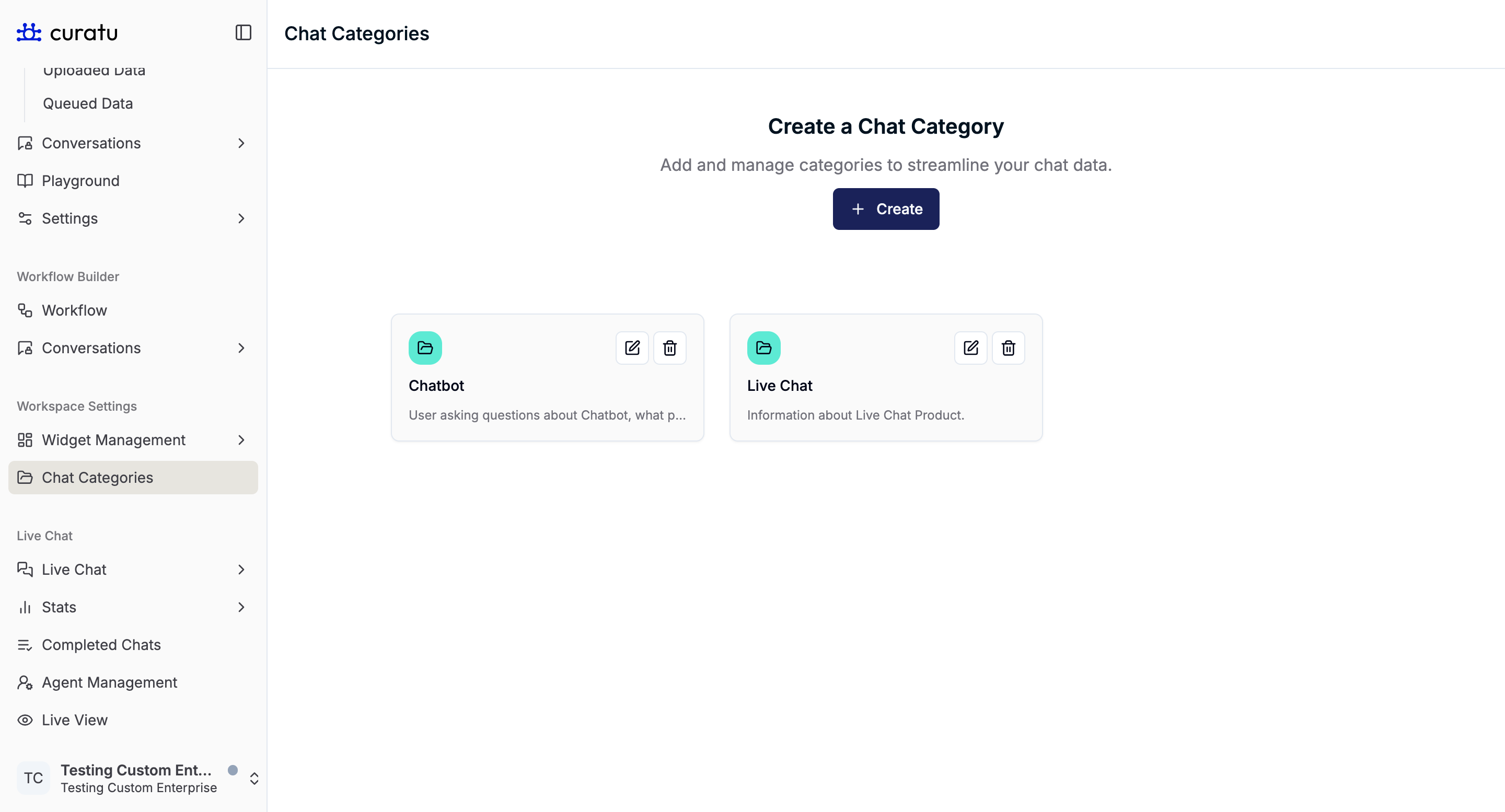
On this page, you can:
- View all existing chat categories
- Create new categories
- Edit existing categories
- Delete categories that are no longer needed
Each category is shown as a card containing:
- Category title
- Category description
- Edit (pencil) button
- Delete (trash) button
Creating a New Chat Category
Click the Create button at the top of the page.
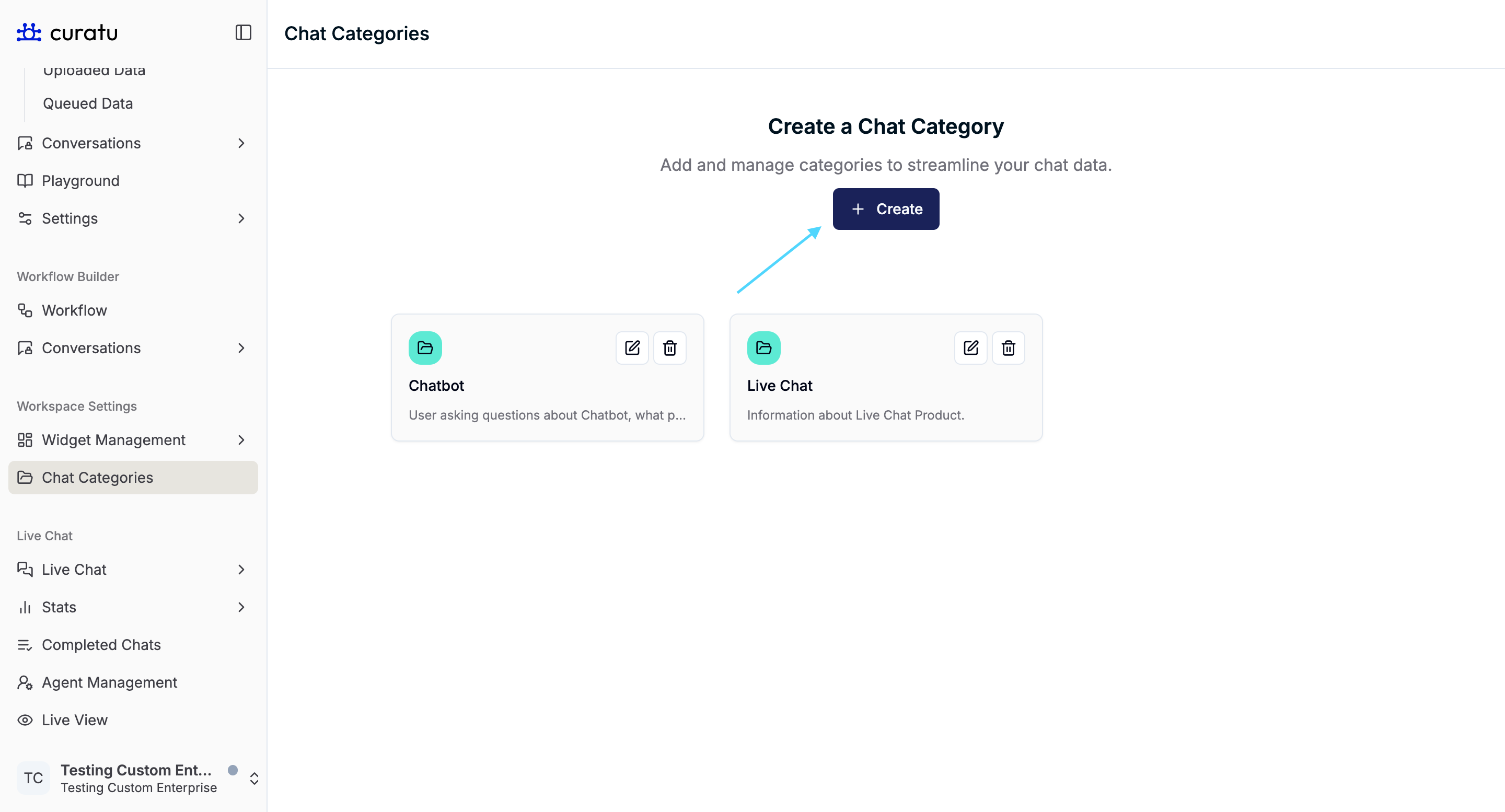
This opens the Add Categories modal.
Add Categories Modal
The modal contains two fields:
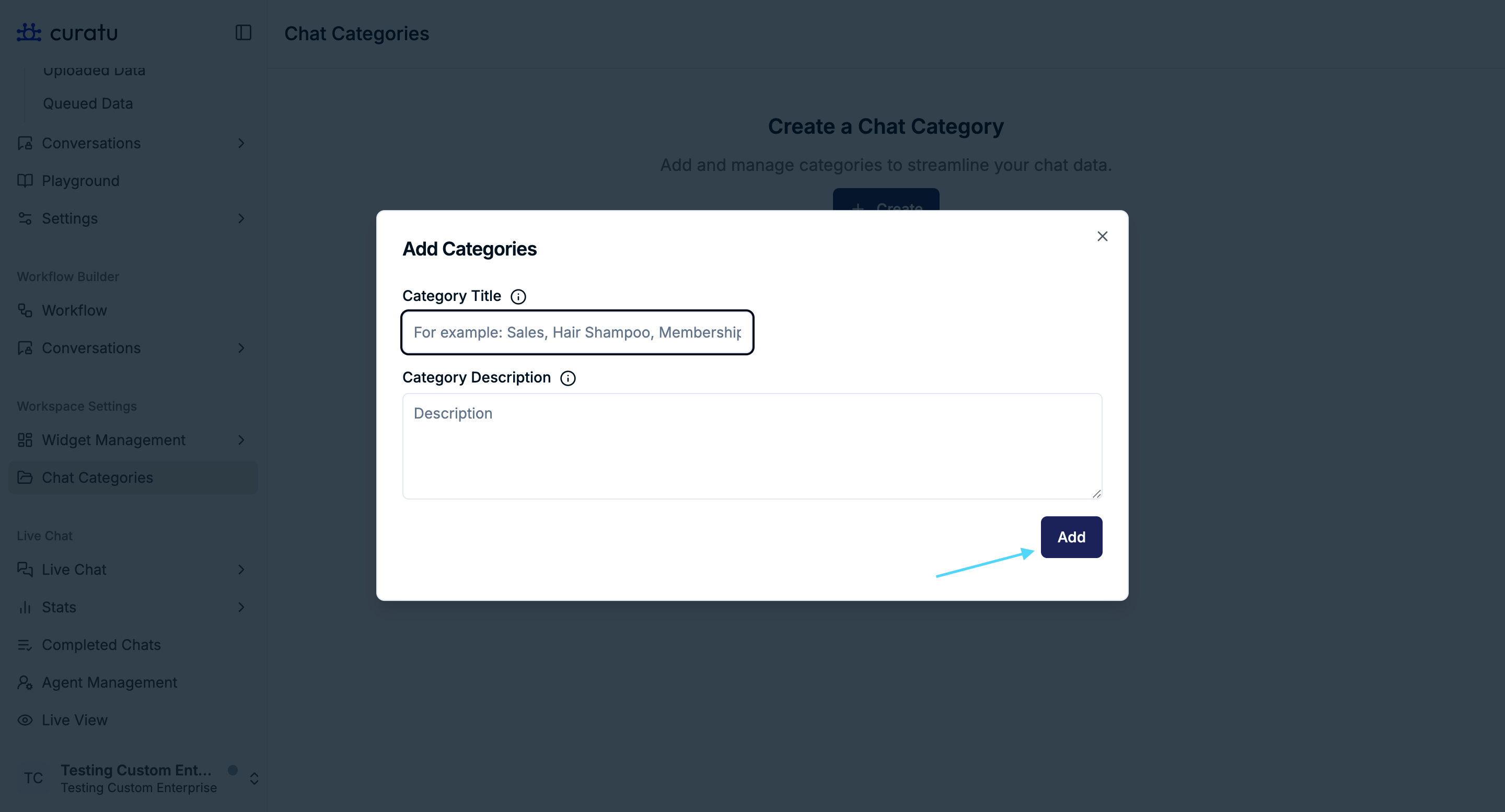
Category Title
The Category Title should be:
- Short and clear
- Ideally one or two words
Examples:
- Live Agent
- Hair Shampoo
- Membership
- Travel
The title is used as the primary label for the category.
Category Description
The Category Description explains what the category covers.
Guidelines:
- Clearly describe the type of conversations included
- Provide meaningful context
- Avoid unnecessary length
Recommended length:
50–150 words
Example
Category Title: Live Agent
Description:
This category includes conversations where users ask to speak with a human agent or need assistance beyond what the chatbot can provide. Typical topics include onboarding help, chatbot setup, training with custom data, and integration support (for example, Shopify or Salesforce). It may also involve account or billing inquiries, analytics questions, user management, or customization needs. Conversations related to API access, security concerns, privacy policies, or unresolved technical issues are also relevant. If a user expresses frustration, requests escalation, or directly asks for human assistance, the conversation should be categorized here.
Adding the Category
After filling in the title and description, click Add.
Once added:
- The modal closes
- The new category appears immediately as a card in the list
Editing an Existing Category
Click the pencil (edit) icon on a category card.
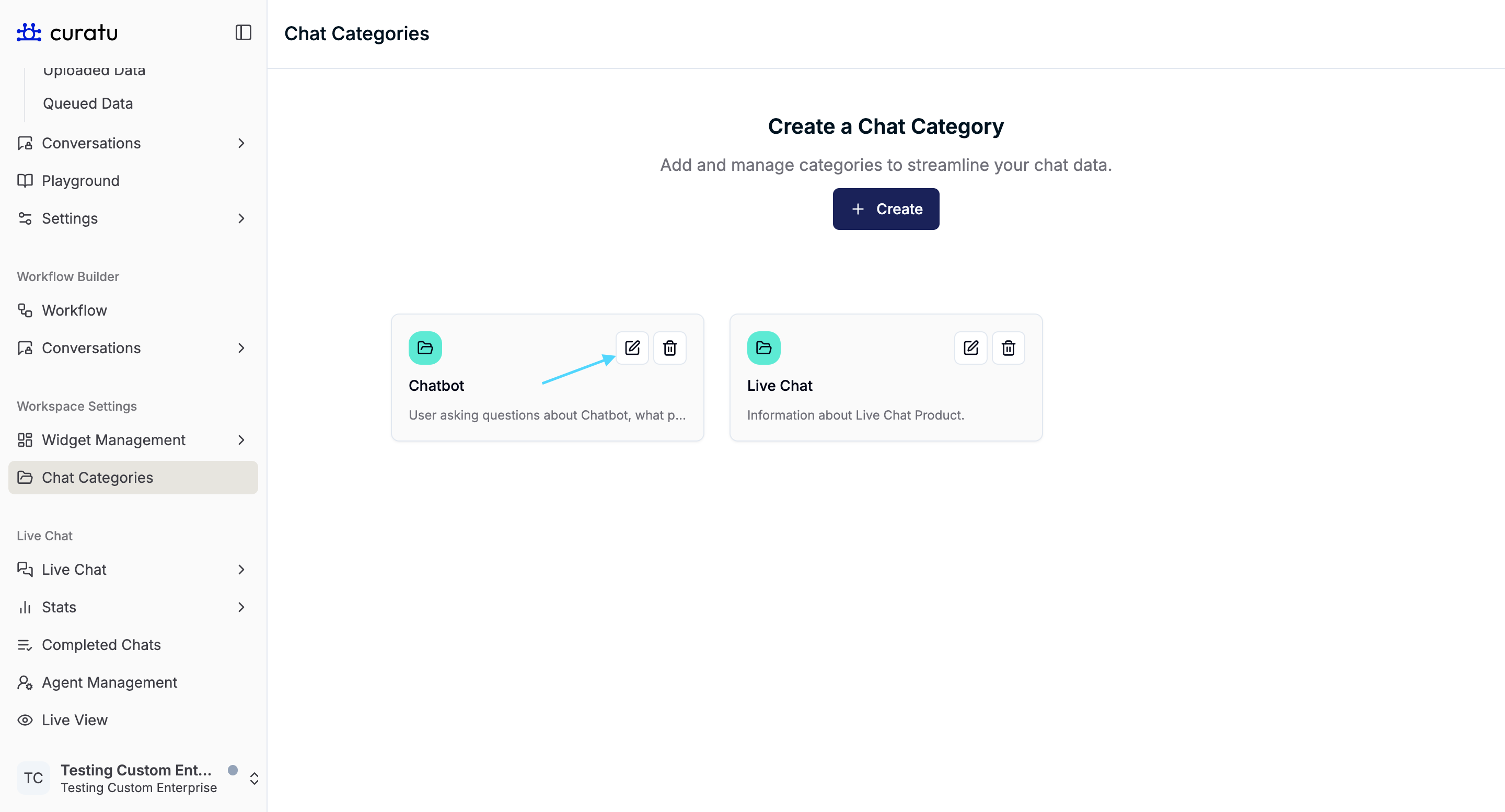
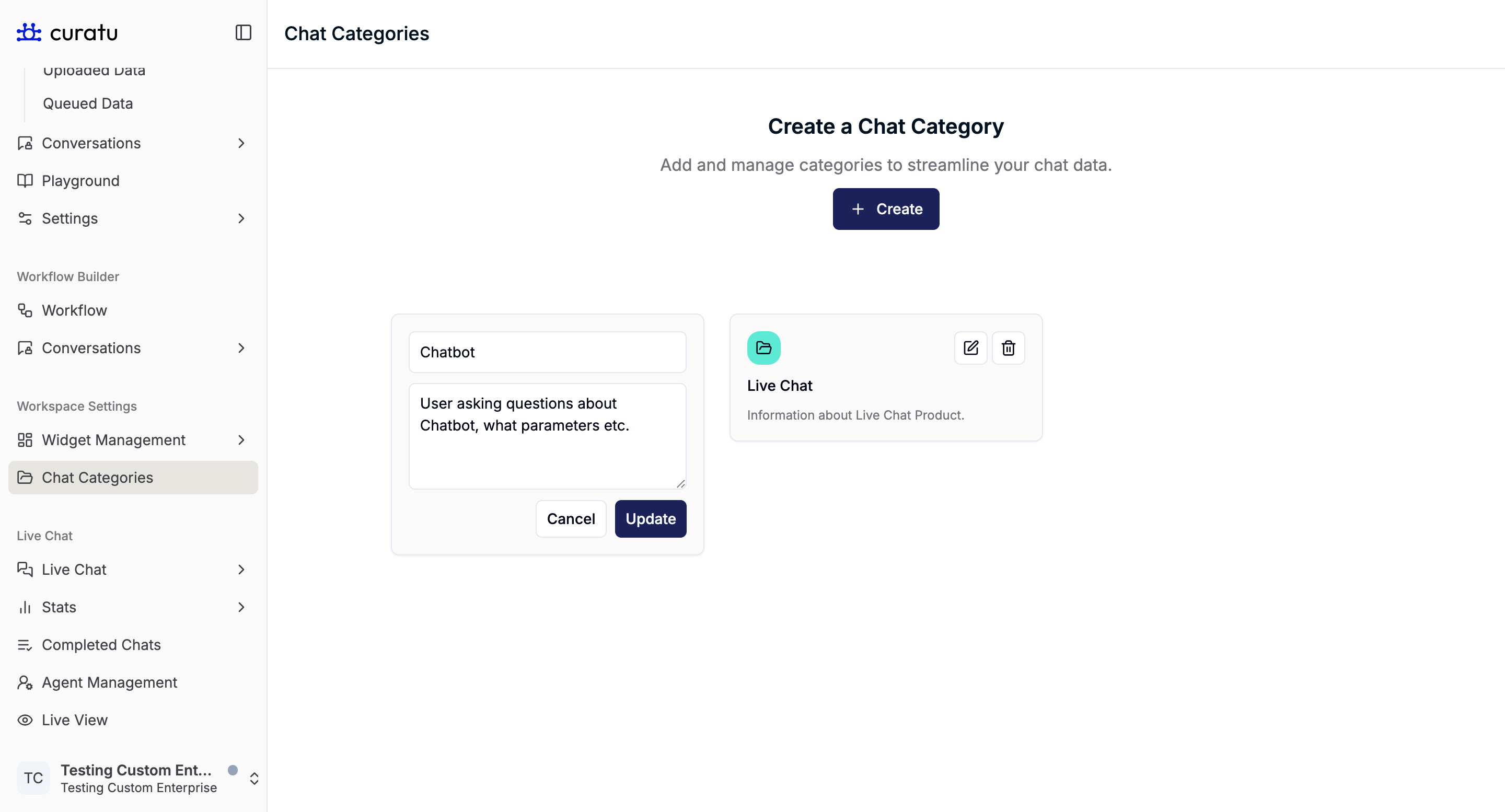
This switches the card into edit mode, where:
- The title and description become editable
- Two buttons are shown: Cancel and Update
Edit Actions
-
Cancel
- Exits edit mode
- No changes are saved
- No update action is triggered
-
Update
- Saves the edited title and/or description
- The category card updates with the new content
Deleting a Category
Click the delete (trash) icon on a category card.
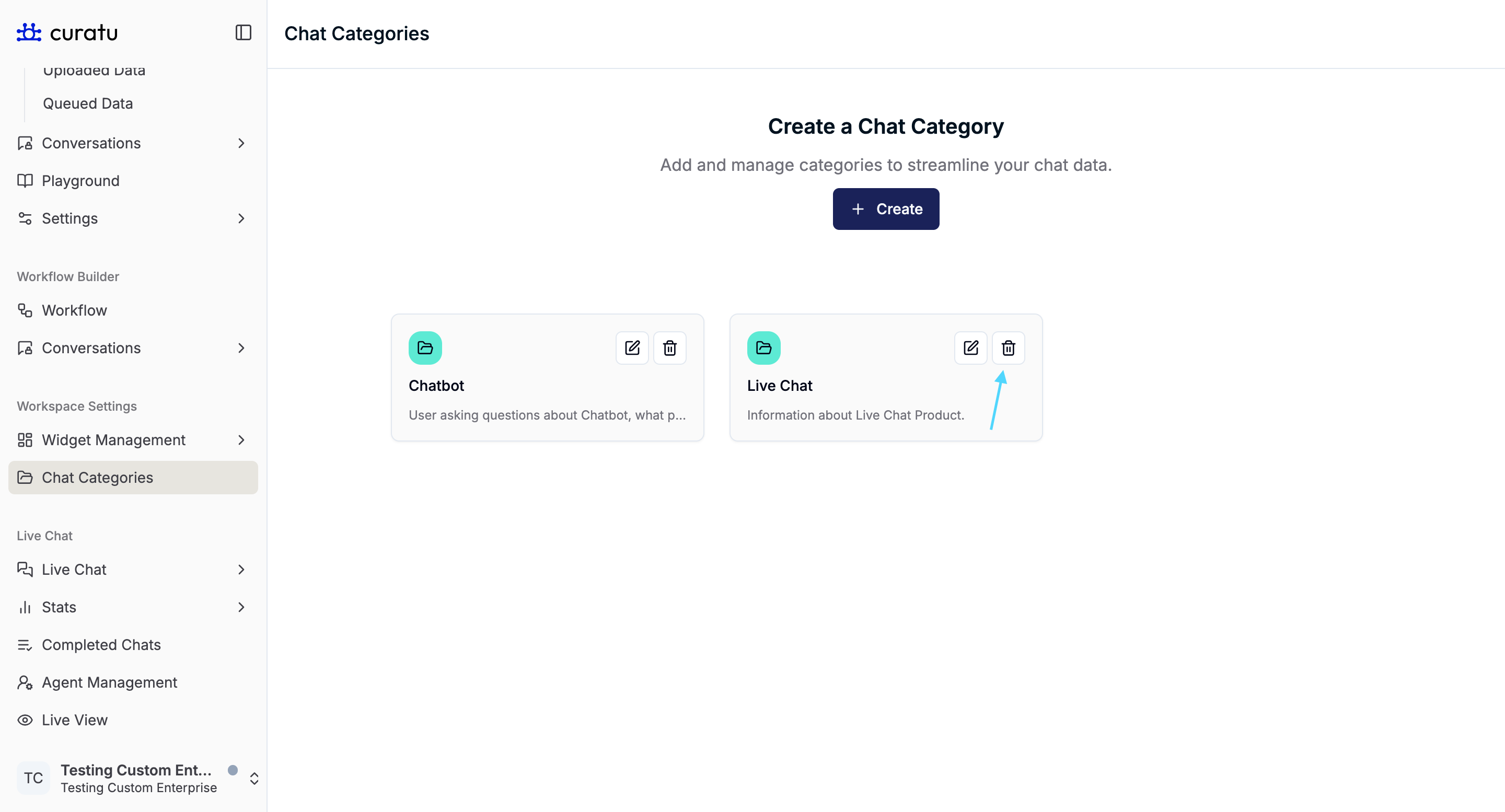
This opens a confirmation modal.
Delete Confirmation Modal
The modal clearly states:
- The category name being deleted
- That the action is permanent and cannot be undone
You have two options:
- Cancel – closes the modal without deleting the category
- Yes, Delete – permanently deletes the category
After confirmation:
- The category is removed from the list
- The deletion cannot be reversed
Summary
The Chat Categories feature allows you to:
- Create clear and meaningful categories for chat conversations
- Provide detailed descriptions for accurate classification
- Edit categories safely with cancel and update controls
- Delete categories with explicit confirmation
This feature helps keep chat data organized, consistent, and easy to manage, especially as conversation volume grows.