Embed & Deploy
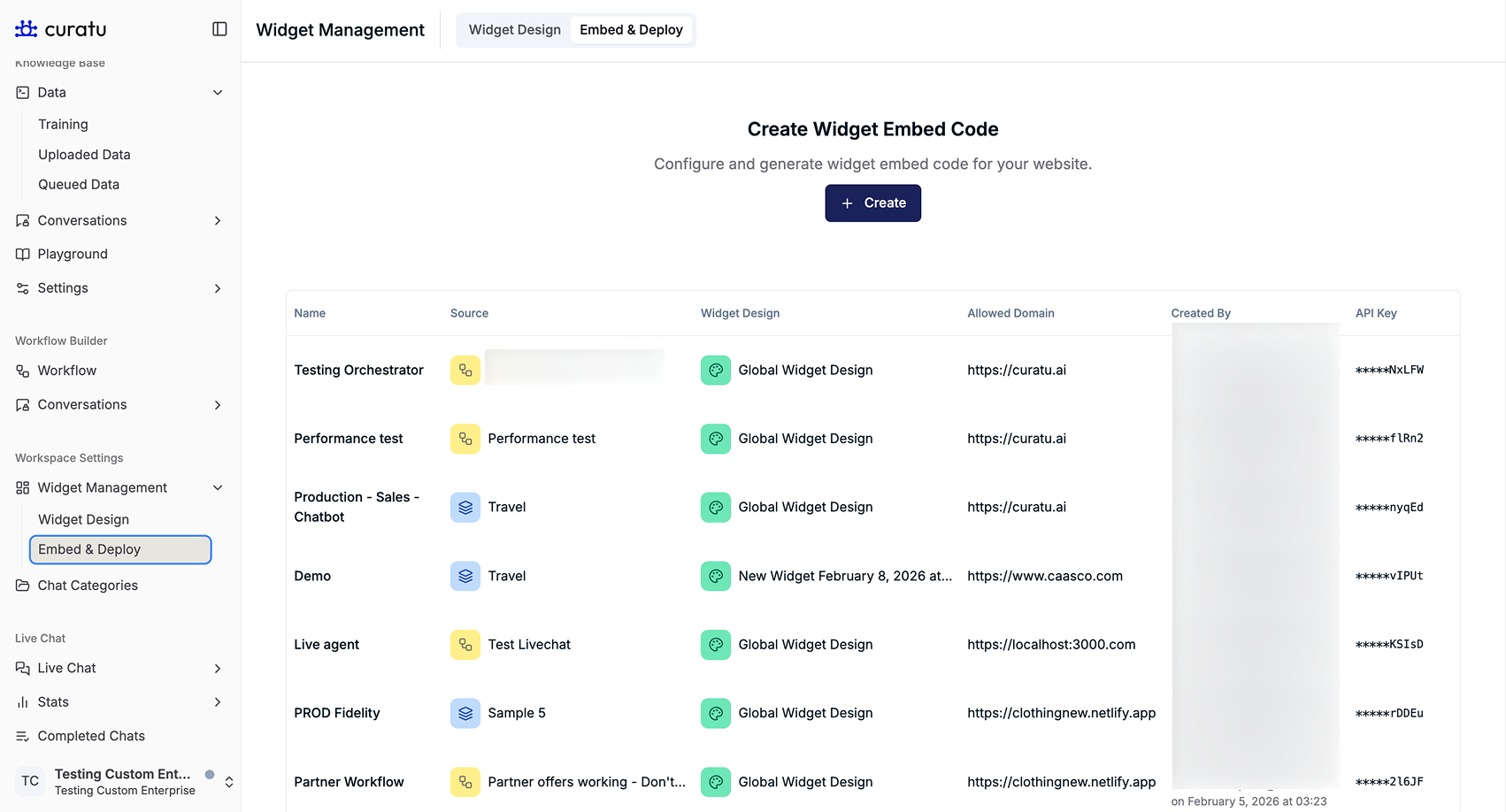
The Embed & Deploy feature allows you to generate and manage embed configurations for adding your chatbot to a website.
Each embed configuration links a chatbot source, a widget design, and an allowed domain into a single deployable setup.
This feature focuses on deployment setup and management, not chatbot logic or UI customization.
Accessing Embed & Deploy
Navigate to:
Sidebar → Widget Management → Embed & Deploy
You will see the Create Widget Embed Code screen along with a table listing all existing embed configurations.
Embed & Deploy List View
The list view displays all previously created embed configurations in a table format.
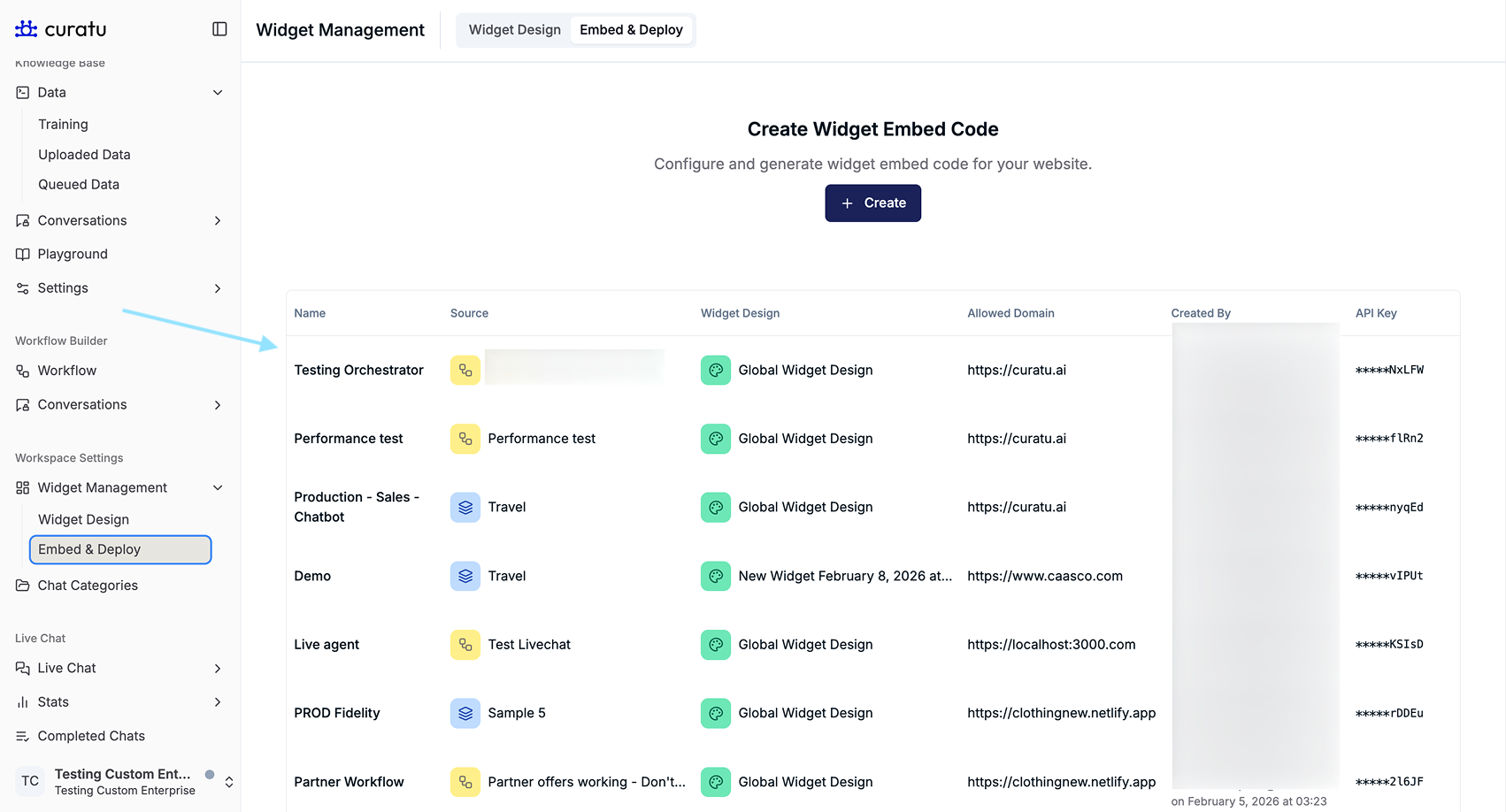
Each row shows:
- Name – The embed configuration name
- Source – The selected chatbot source
- Widget Design – The widget design applied
- Allowed Domain – The website where the chatbot is allowed to load
- Created By – The user who created the embed
- API Key – A masked key associated with the embed
- Actions – Additional options such as viewing the embed code
This table helps you manage multiple deployments across different environments (for example: demo, staging, production).
Creating a New Embed Configuration
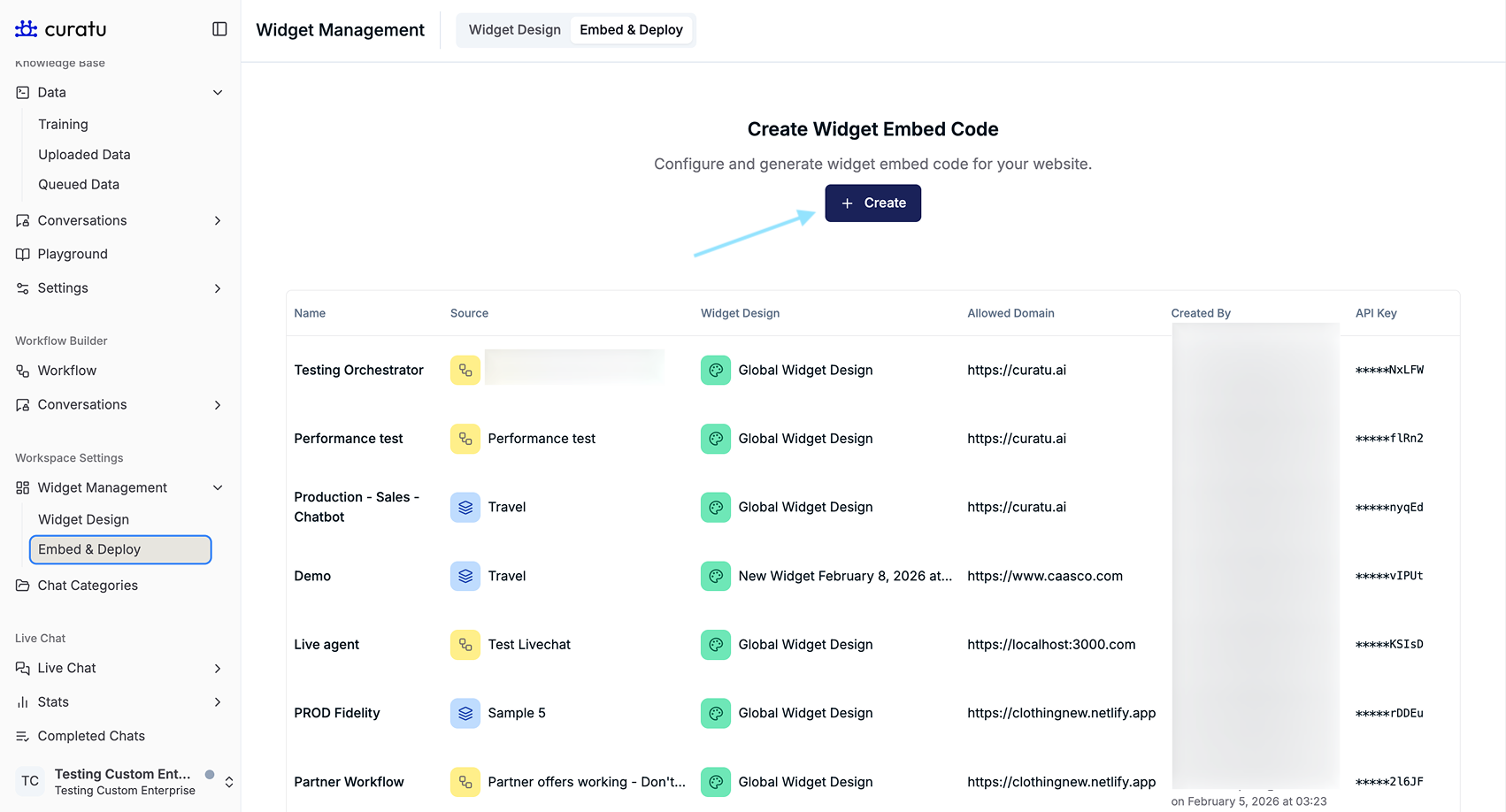
Click the Create button on the Embed & Deploy page.
This opens the Create Widget Embed Code modal.
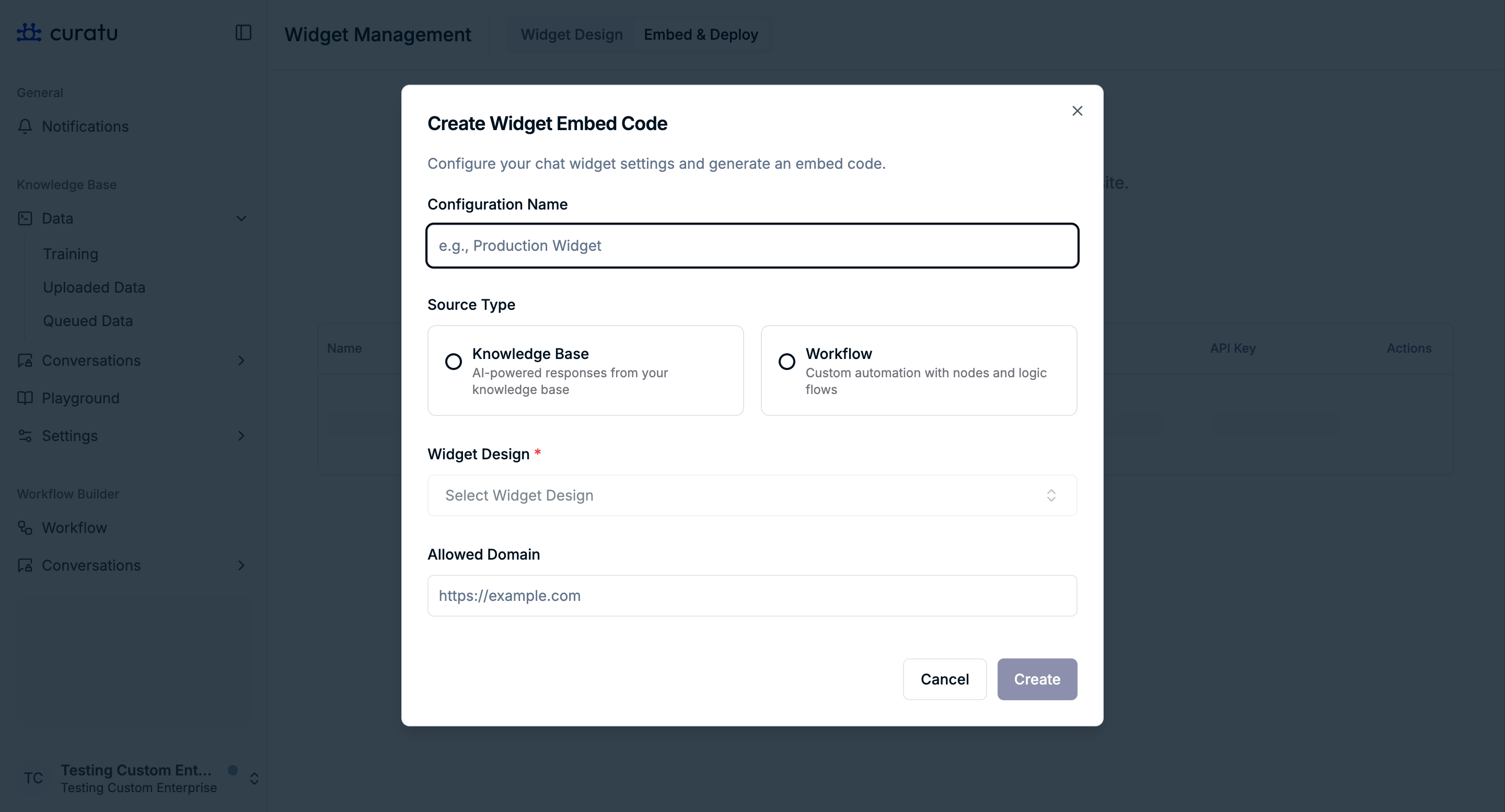
Create Widget Embed Code Modal
The modal guides you through configuring a new embed setup.
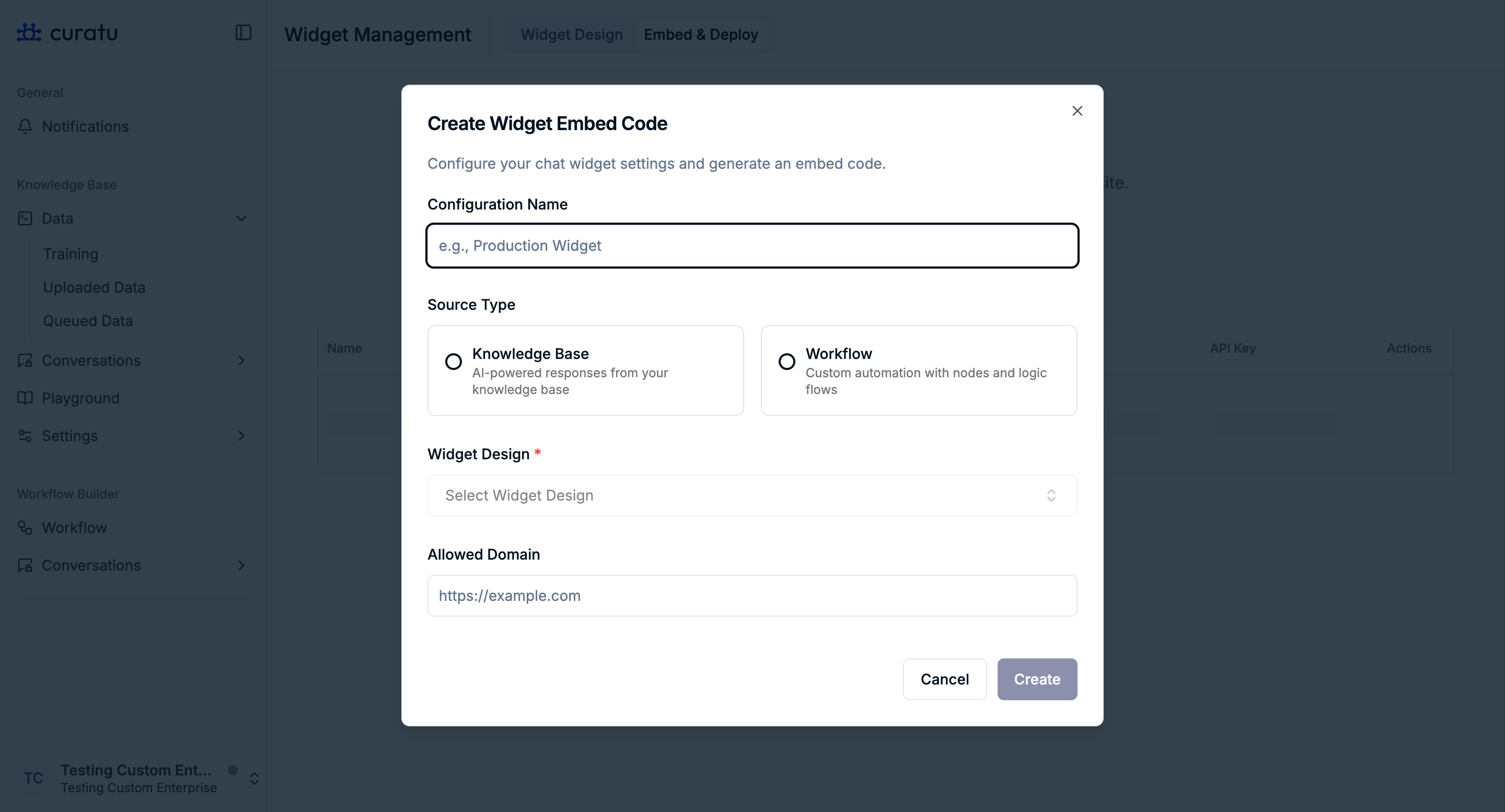
Configuration Name
Enter a name to identify this embed configuration.
This name is used only for management and reference inside the dashboard.
Source Type
You can choose one of the following source types:
Knowledge Base
- Uses AI-powered responses from your knowledge base
- Supports both V1 and V2 chatbots
- Required when you want to deploy a V1 chatbot
Workflow
- Uses custom workflows built with nodes and logic
- Only supports V2 chatbot
- V1 chatbot is not supported when using Workflow
📌 Important behavior
- To use V1 chatbot, always select Knowledge Base
- When Workflow is selected, the chatbot version is automatically limited to V2
No other behavior changes based on this selection.
Widget Design
Select one of the existing widget designs.
The selected widget design controls:
- Visual appearance
- Branding
- Text and visibility settings
This selection does not change chatbot logic.
Allowed Domain
Enter the website domain where the chatbot is allowed to run.
This ensures the embed is restricted to the specified domain.
Creating the Embed
After filling all required fields, click Create.
Once created:
- The modal closes
- A new entry appears in the embed table
- The embed configuration is now available for use
Viewing Embed Code
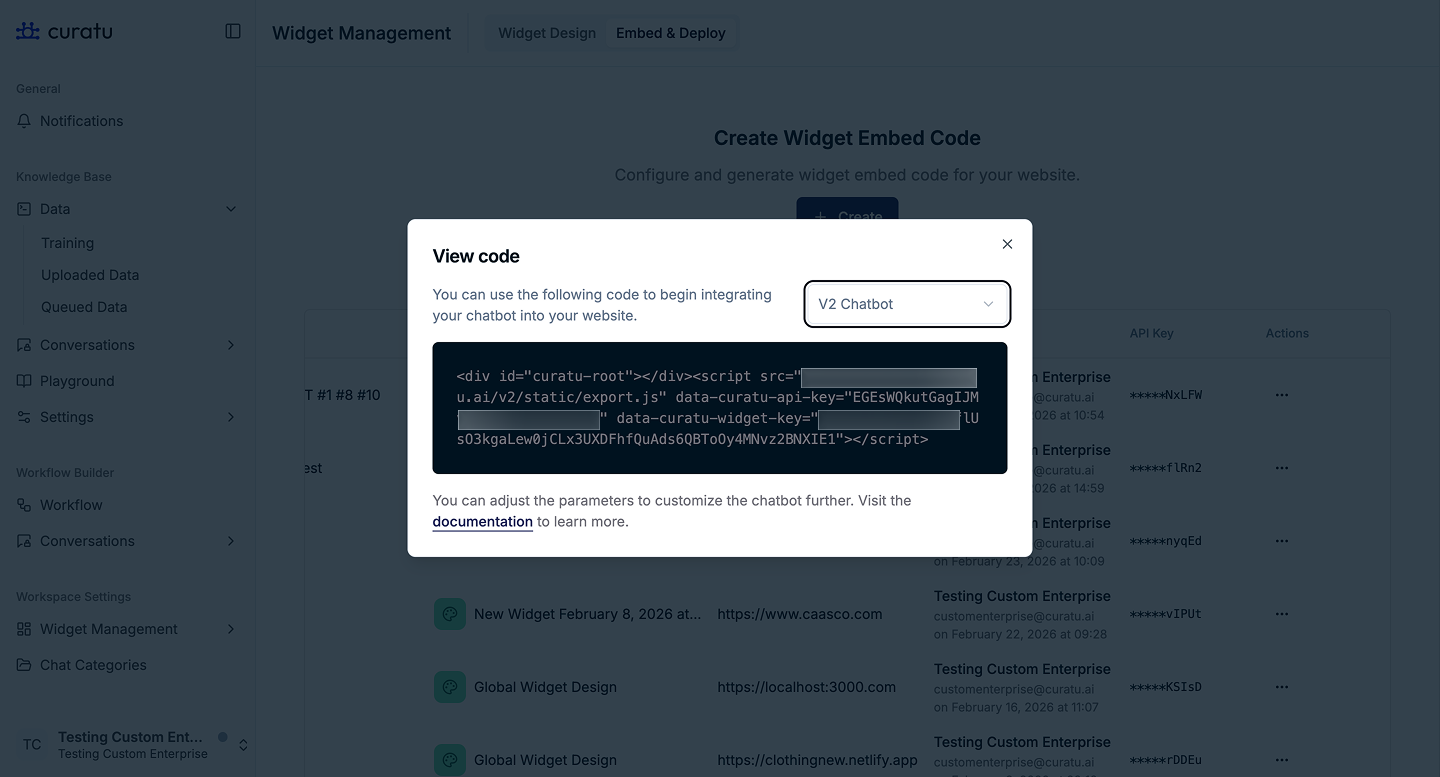
From the embed table, you can open the View Code option.
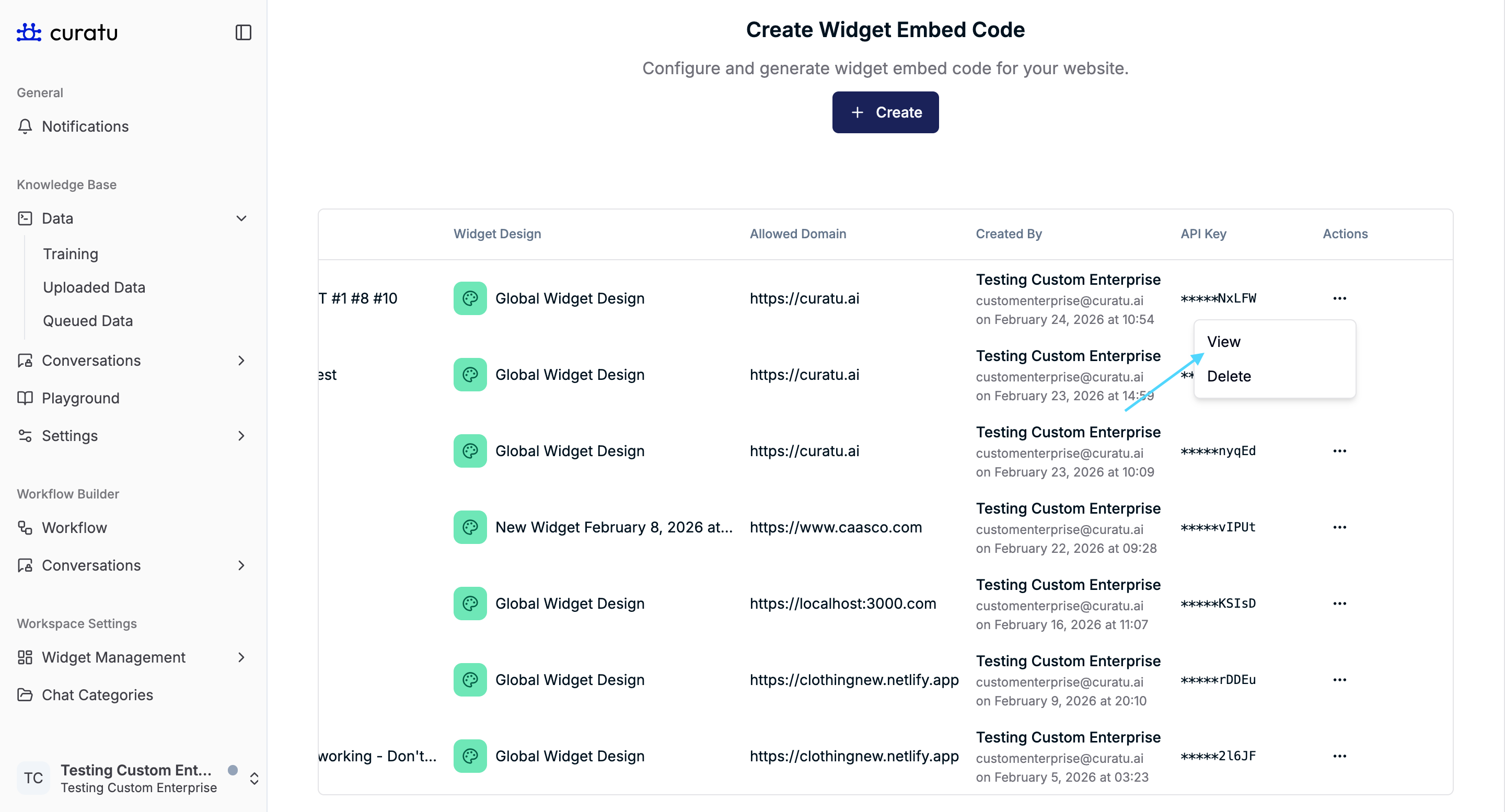
This opens a modal displaying:
- A ready-to-use embed code snippet
- A chatbot version selector (for example, V2 Chatbot)
The embed code can be copied and added to your website.
📌 The code shown reflects:
- The selected source type
- The selected widget design
- The chatbot version supported by that source
Chatbot Version Behavior Summary
-
Knowledge Base
- Supports V1 chatbot
- Supports V2 chatbot
-
Workflow
- Supports V2 chatbot only
- V1 chatbot is not available
All other embed behavior remains the same regardless of version.
Summary
The Embed & Deploy feature allows you to:
- Create deployable chatbot embed configurations
- Choose between Knowledge Base and Workflow sources
- Apply existing widget designs consistently
- Restrict chatbot usage to specific domains
- Generate and manage embed codes from a central table
This feature ensures chatbot deployment is controlled, repeatable, and easy to manage, without exposing technical complexity to non-technical users.