Workflow Builder
The Workflow Builder allows you to create, manage, test, publish, and collaborate on automated chatbot workflows using a visual canvas.
It is designed to support both simple and advanced conversational logic while maintaining clear version control and access management.
This document explains the Workflow feature conceptually, focusing on user-facing behavior and lifecycle—not internal implementation.
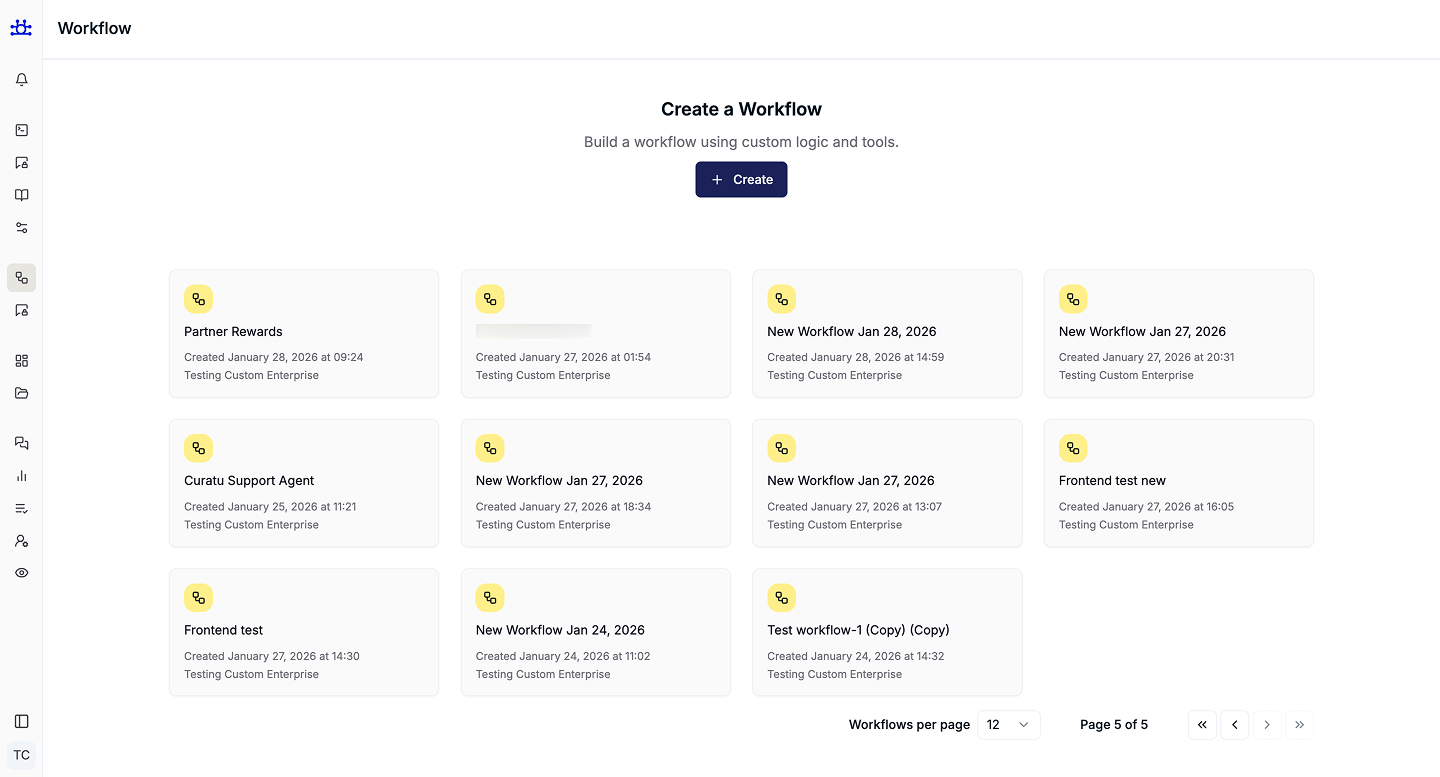
Accessing Workflows
Navigate to:
Sidebar → Workflow Builder → Workflow
This opens the All Workflows page, where all workflows in your workspace are listed.
All Workflows Page
The All Workflows page displays workflows as cards in a grid layout.
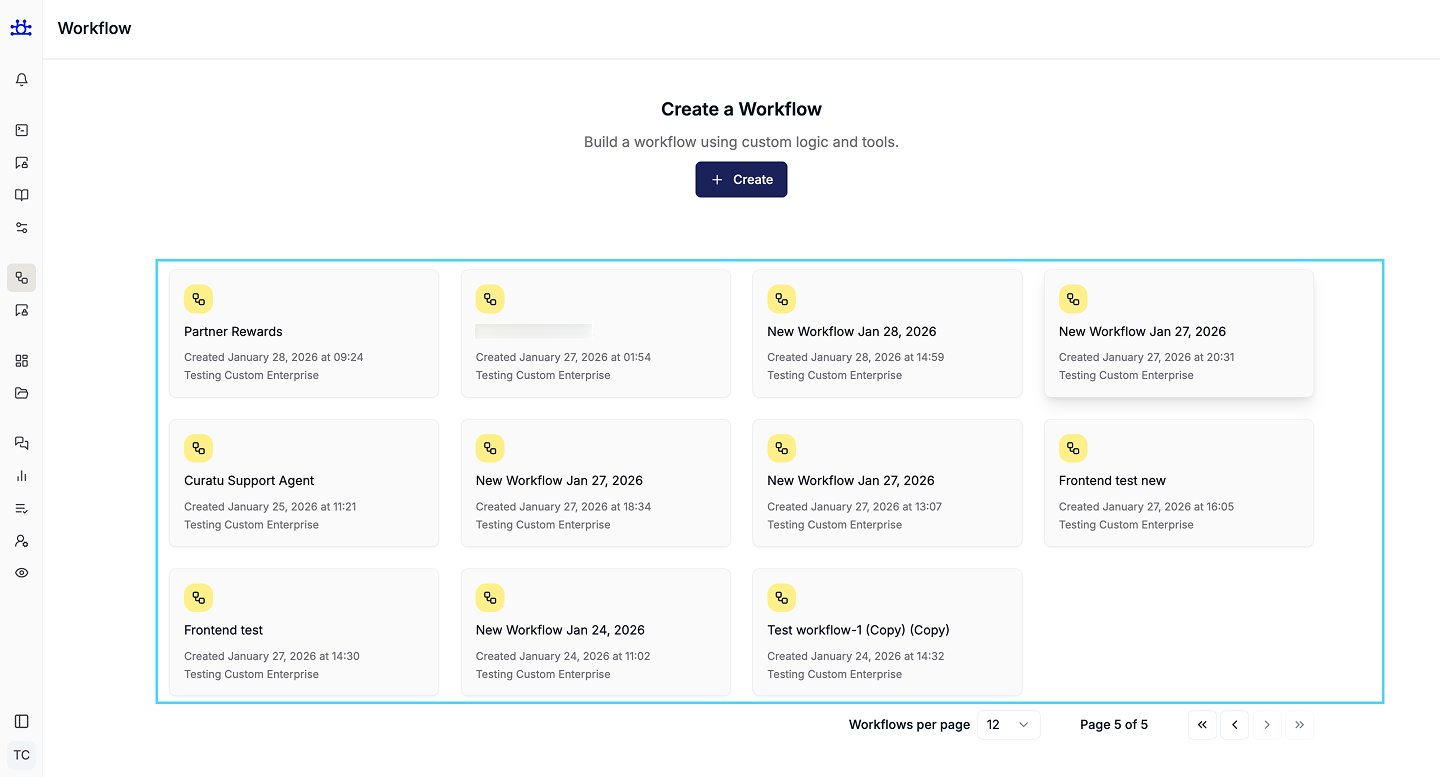
Workflow Cards
Each workflow card shows:
- Workflow Name
- Created Date
- Created By
- Workflow Icon (indicates access level)
Pagination Behavior
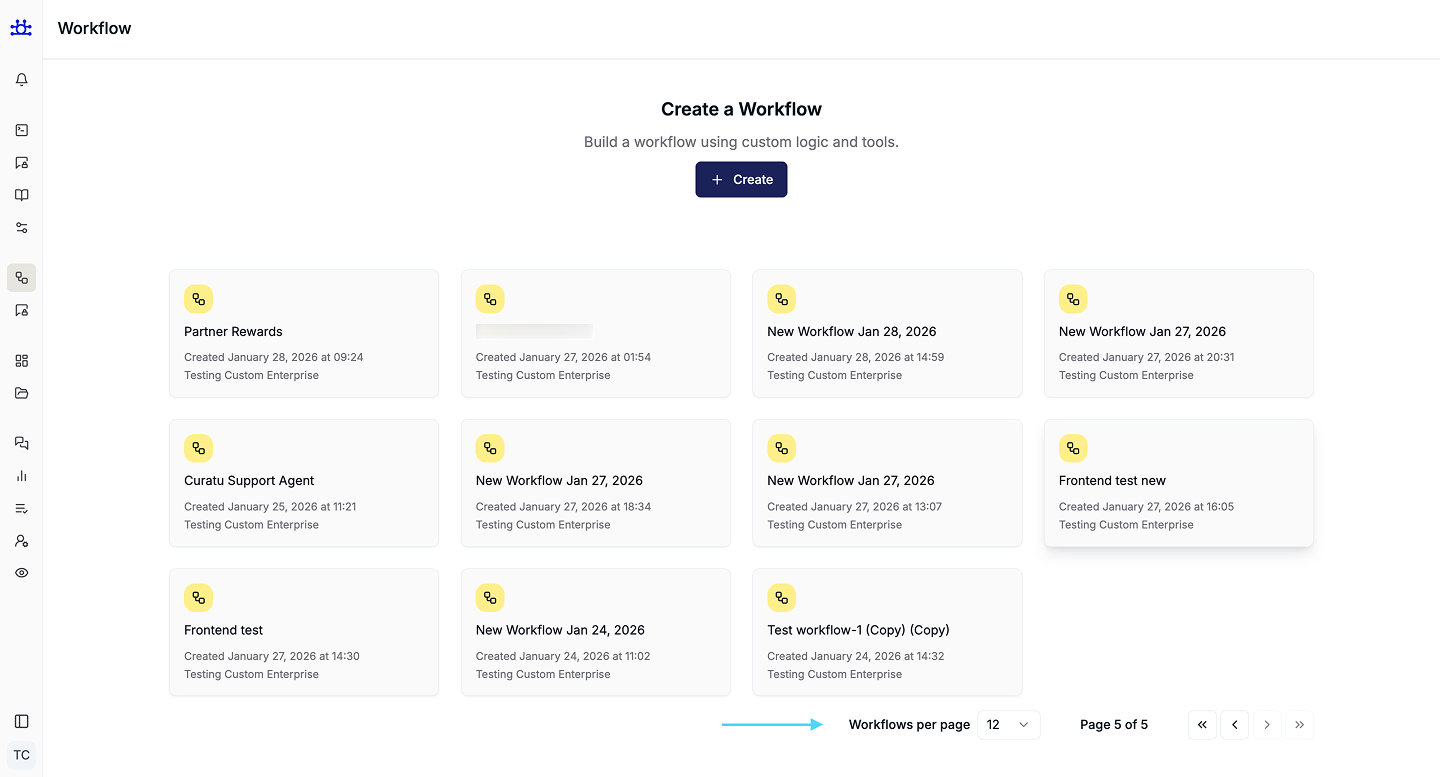
- Up to 12 workflows are shown per page by default.
- If total workflows ≤ 12, pagination is hidden.
- If total workflows > 12, pagination controls appear.
- Pagination supports:
- First (
<<) - Previous (
<) - Next (
>) - Last (
>>)
- First (
- Changing pages replaces the previous set of cards with the next set.
- Changing Workflows per page updates how many cards are visible and keeps pagination enabled if needed.
Creating a New Workflow
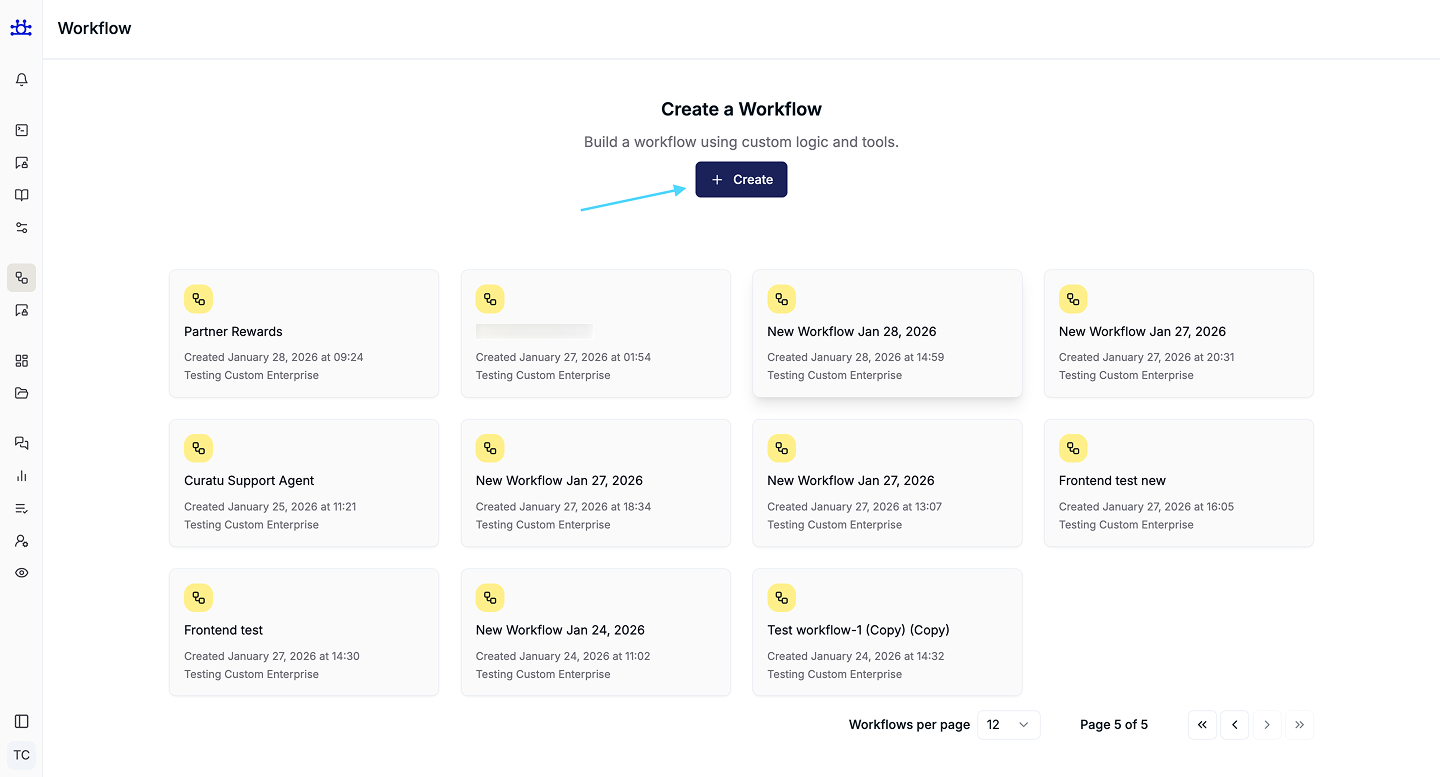
- Click the Create button.
- A loader appears briefly.
- A new workflow is created automatically.
- You are redirected to the Workflow Canvas in Draft state.
Workflow Canvas Overview
The workflow canvas is where you visually design your workflow.
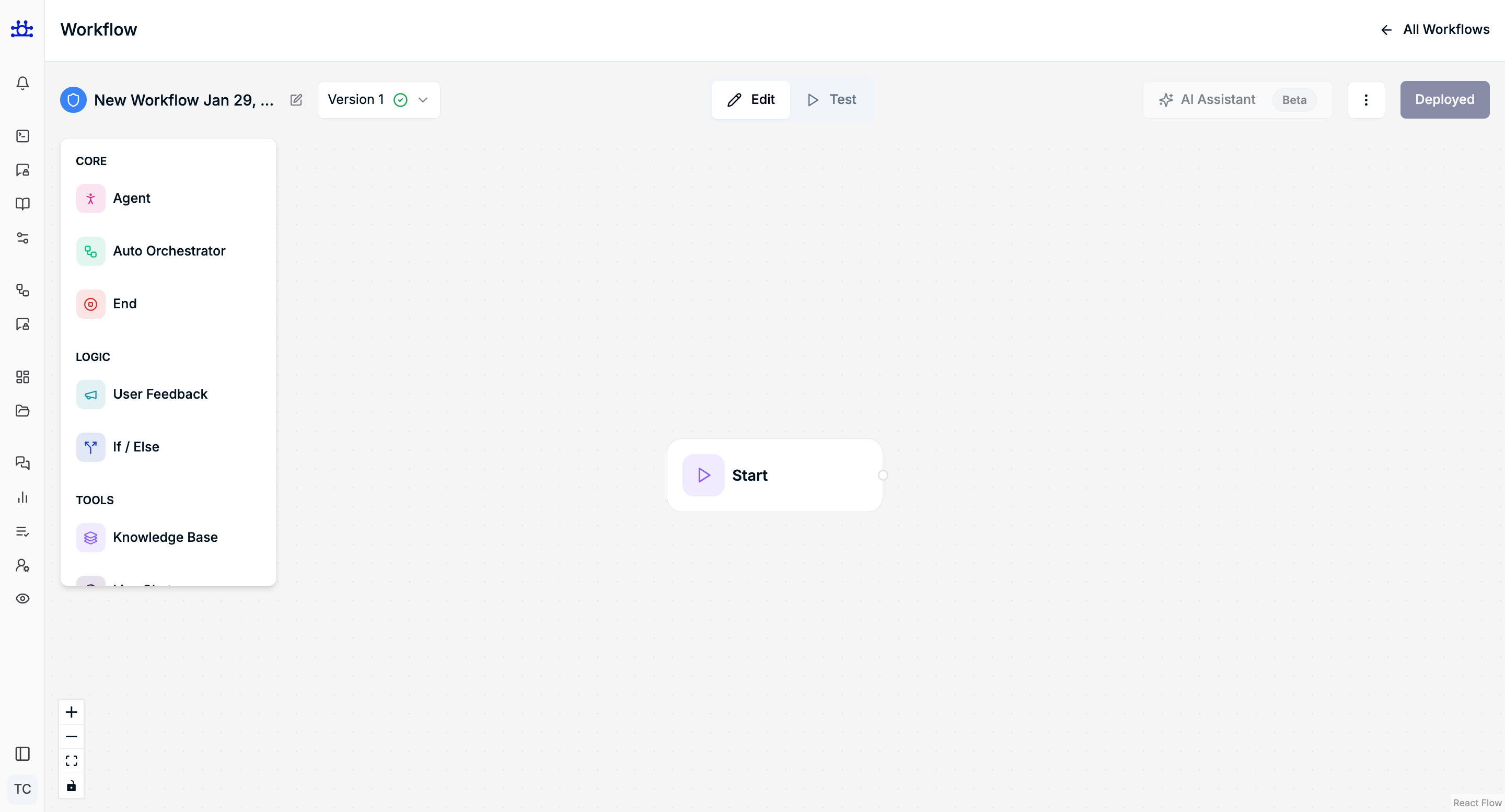
Key Areas
-
Canvas Area
Displays workflow nodes and connections. -
Left Node Panel
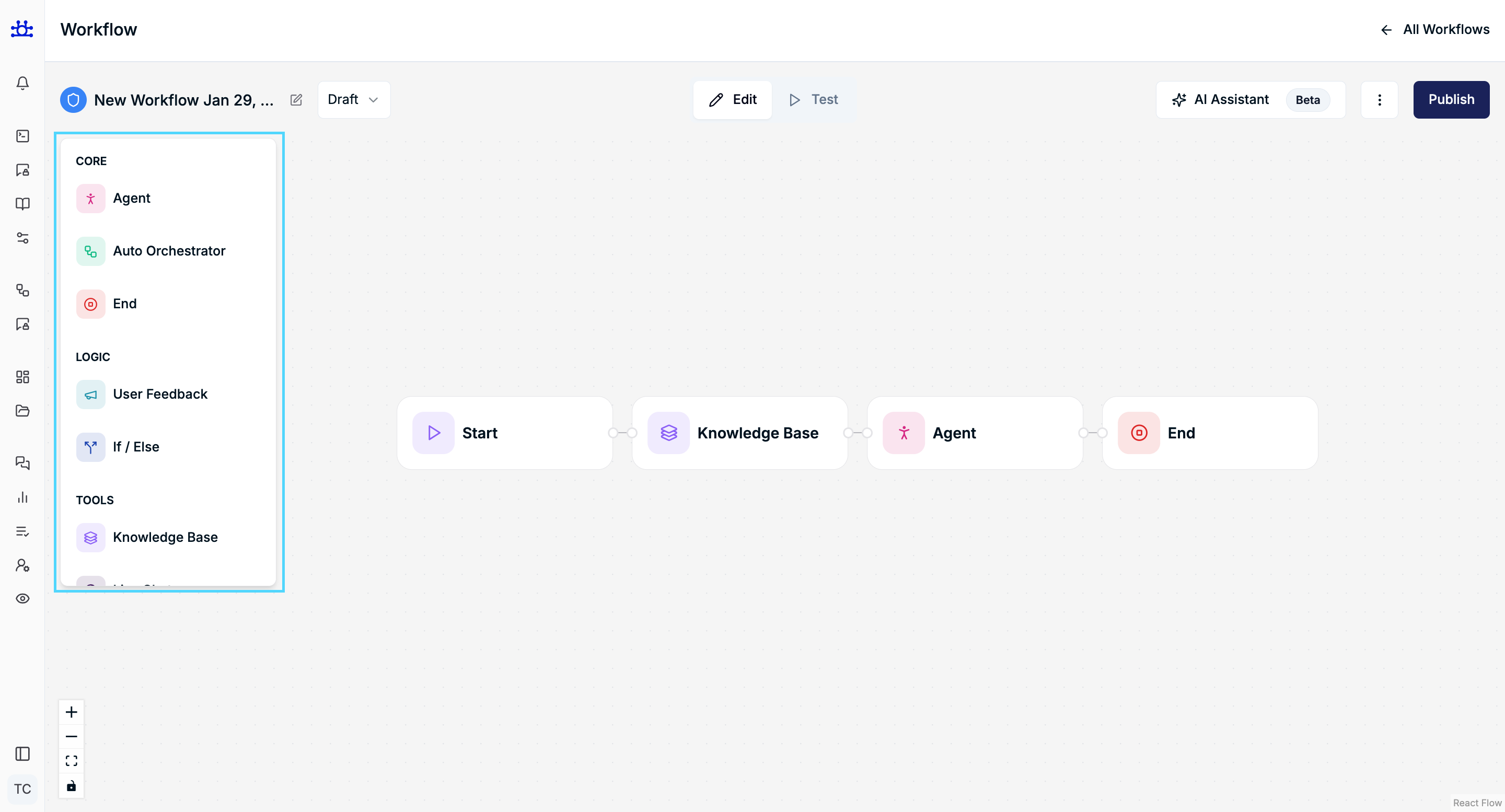
Lists available nodes grouped by type:
- Default Node
- Core
- Logic
- Tools
-
(Node configuration details are documented separately.)
-
Top Action Bar
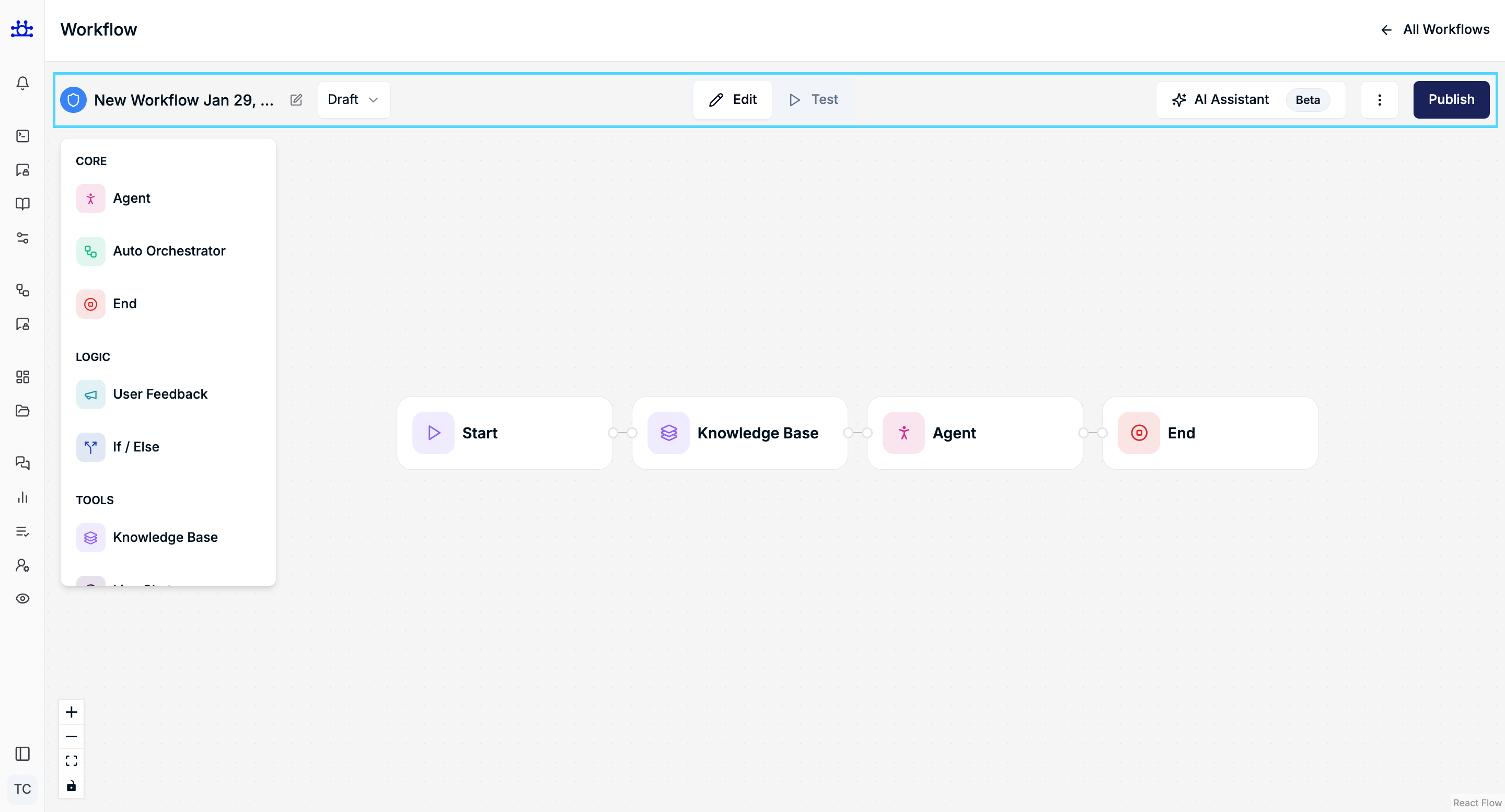
- Workflow name & status (Draft / Version)
- Edit / Test toggle
- AI Workflow Assistant (Beta)
- Publish / Deploy actions
- Three-dot action menu
-
Right Panel
- Appears in Test mode as a chatbot interface.
Editing Workflow Name
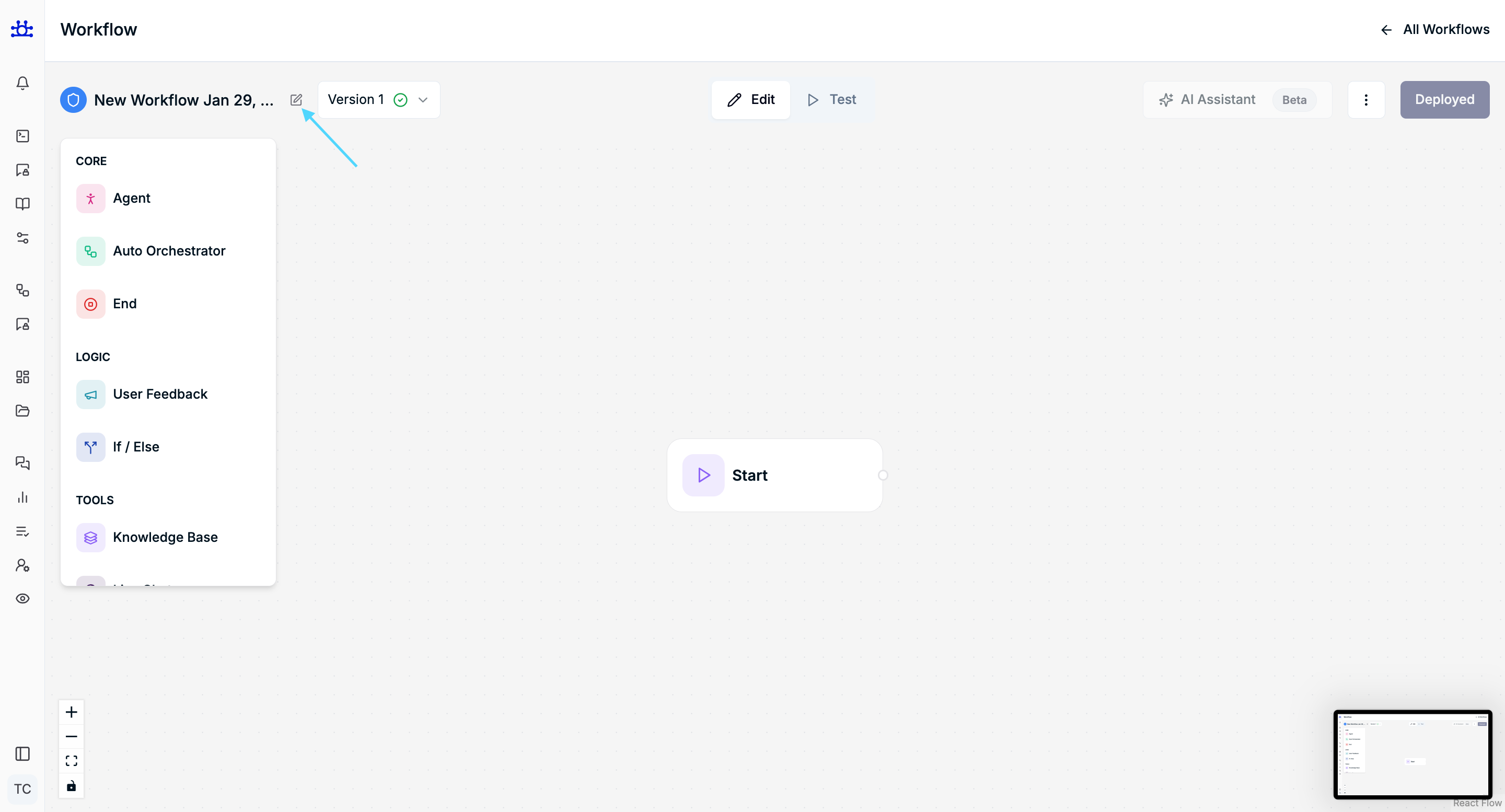
- Click the pencil icon next to the workflow name.
- The name becomes editable.
- Check (✔) and Cross (✖) icons appear.
Save Name
- Click Check
- Name updates successfully
- Only the name changes; all workflow data remains unchanged
Cancel Edit
- Click Cross
- Edit mode closes
- Original name is restored
- No update action is triggered
Access Indicator
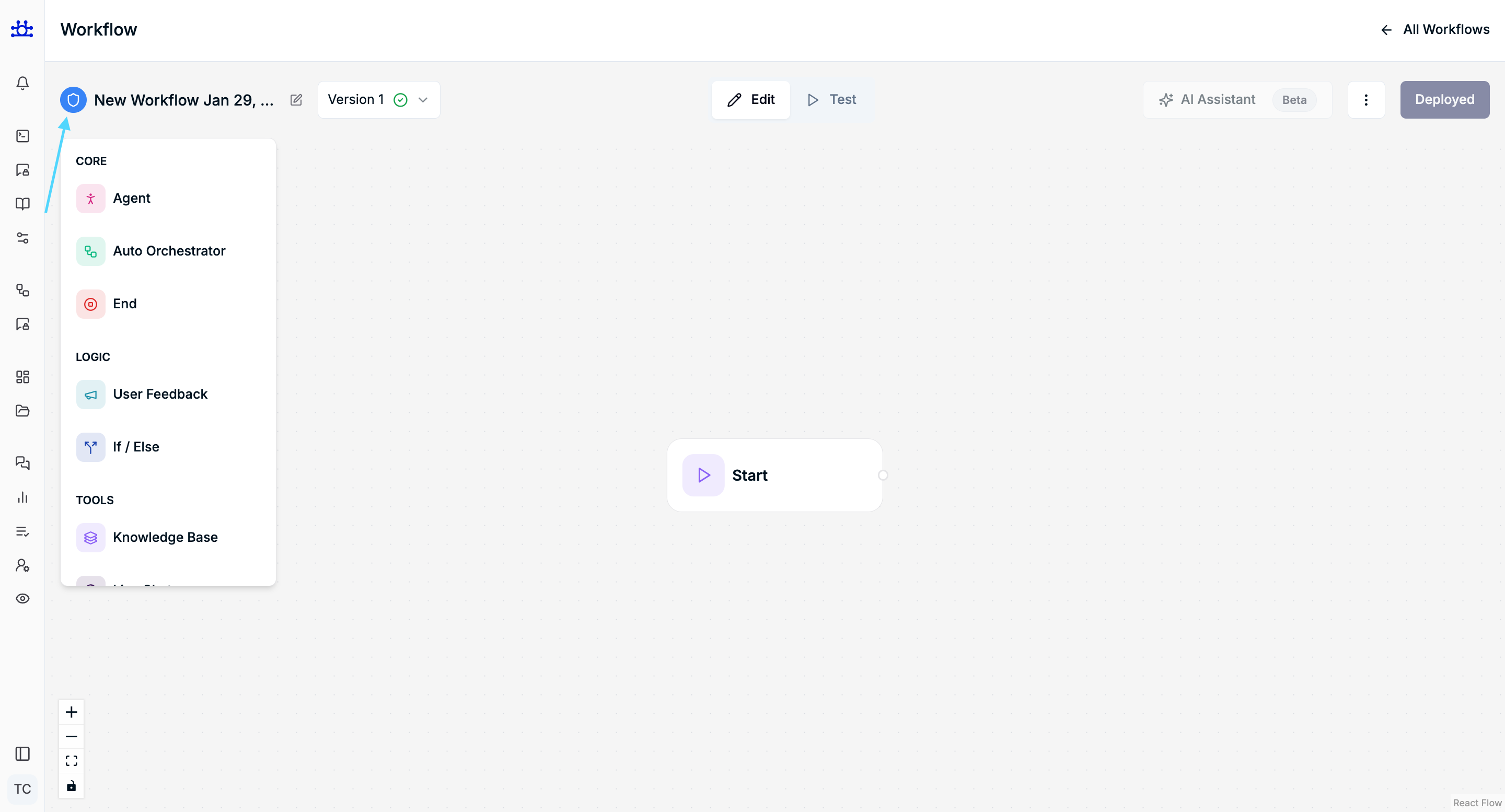
- Hover over the icon next to the workflow name.
- A tooltip shows access level:
- Owner
- Editor
- Viewer
- Icon color reflects the access role.
Version Management
Version Dropdown
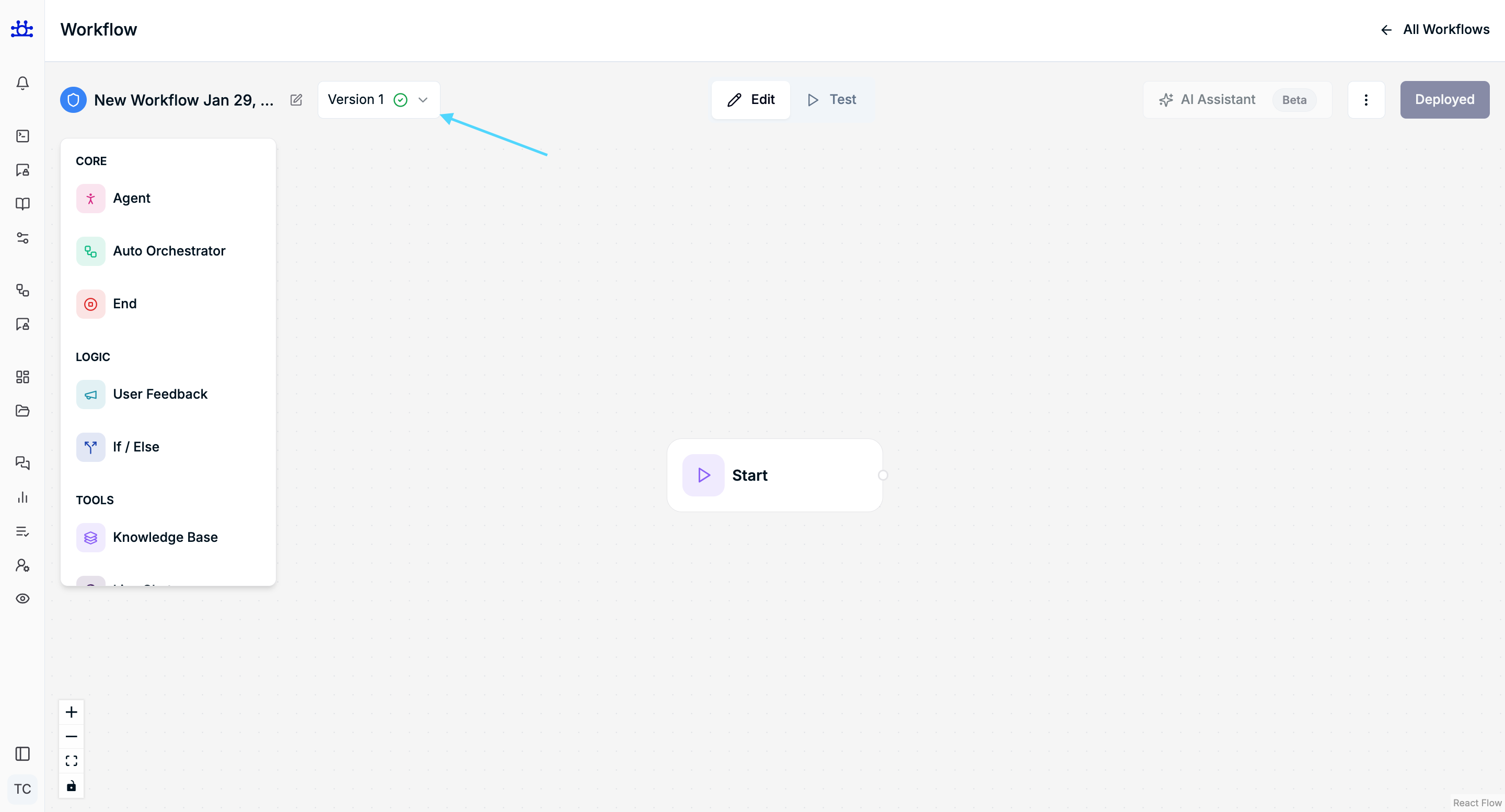
- Displays all versions and drafts associated with the workflow.
- Shows version name, status, and date.
- Selecting a version reloads:
- Workflow canvas
- Nodes
- Settings
Draft Behavior
- New workflows start as Draft.
- Once published or deployed, the Draft is replaced by a version.
- Published or Deployed workflows can generate a new Draft when modified.
Edit Mode vs Test Mode
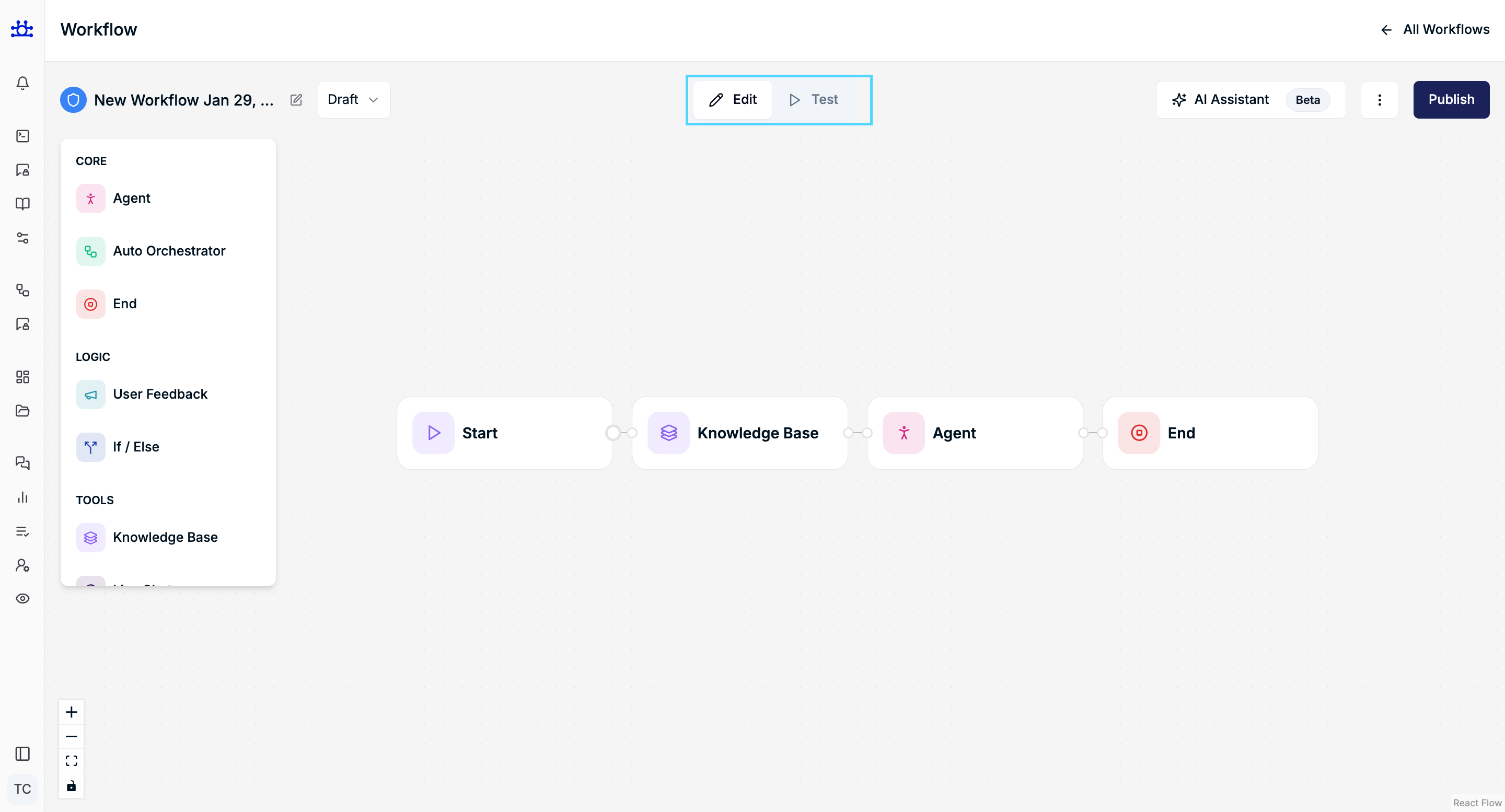
Edit Mode (Default)
- Nodes can be added, moved, connected, or deleted.
- Node settings are editable.
- Workflow structure can be modified.
Test Mode
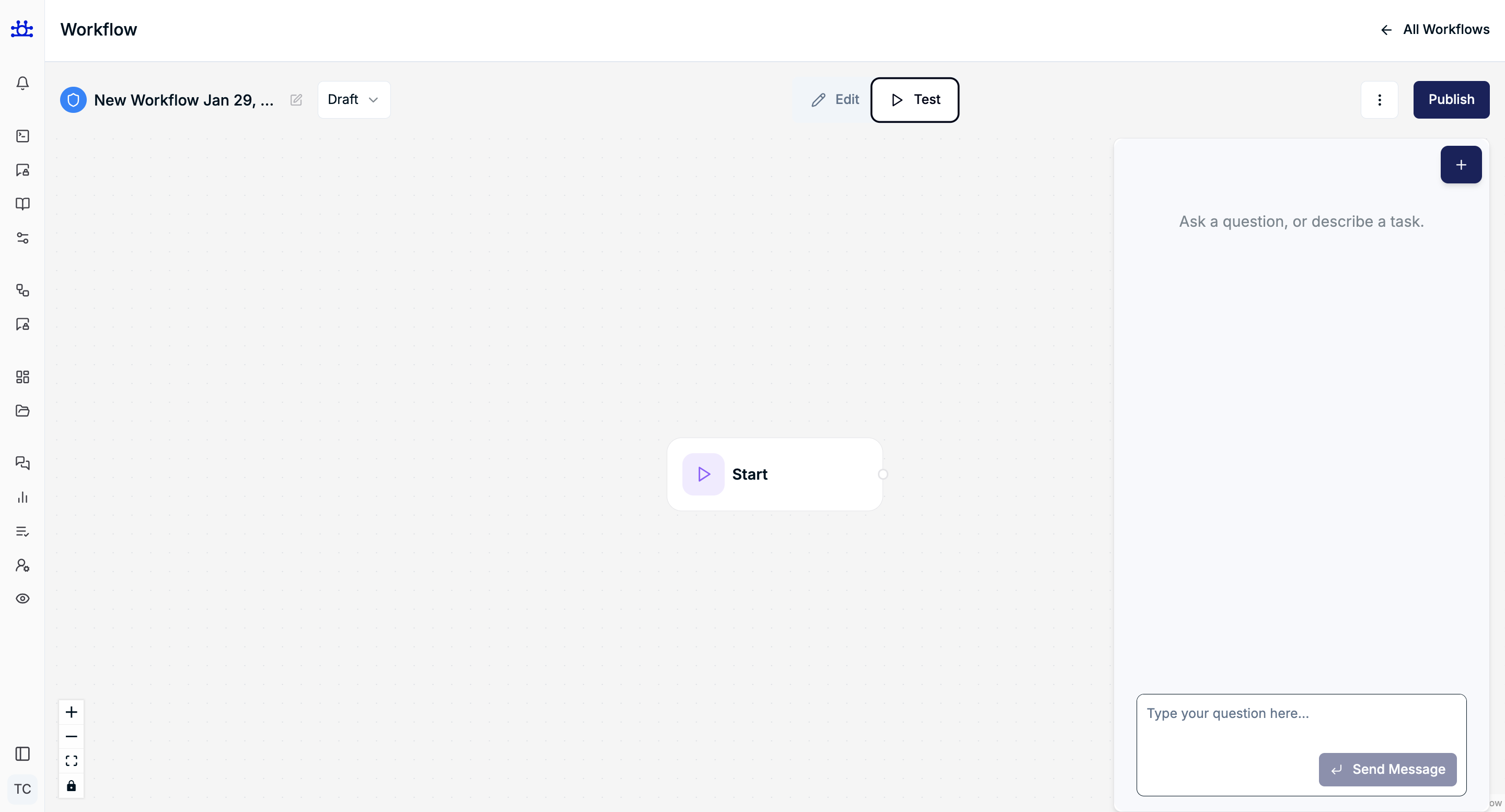
- Click Test
- Editing is disabled:
- Nodes cannot be moved or deleted
- Connections cannot be created or removed
- Node settings cannot be changed
- Left node panel is hidden.
- Right-side chatbot panel becomes visible.
- Users can send messages to test workflow behavior.
You can switch between Edit and Test modes multiple times safely.
AI Workflow Assistant (Beta)
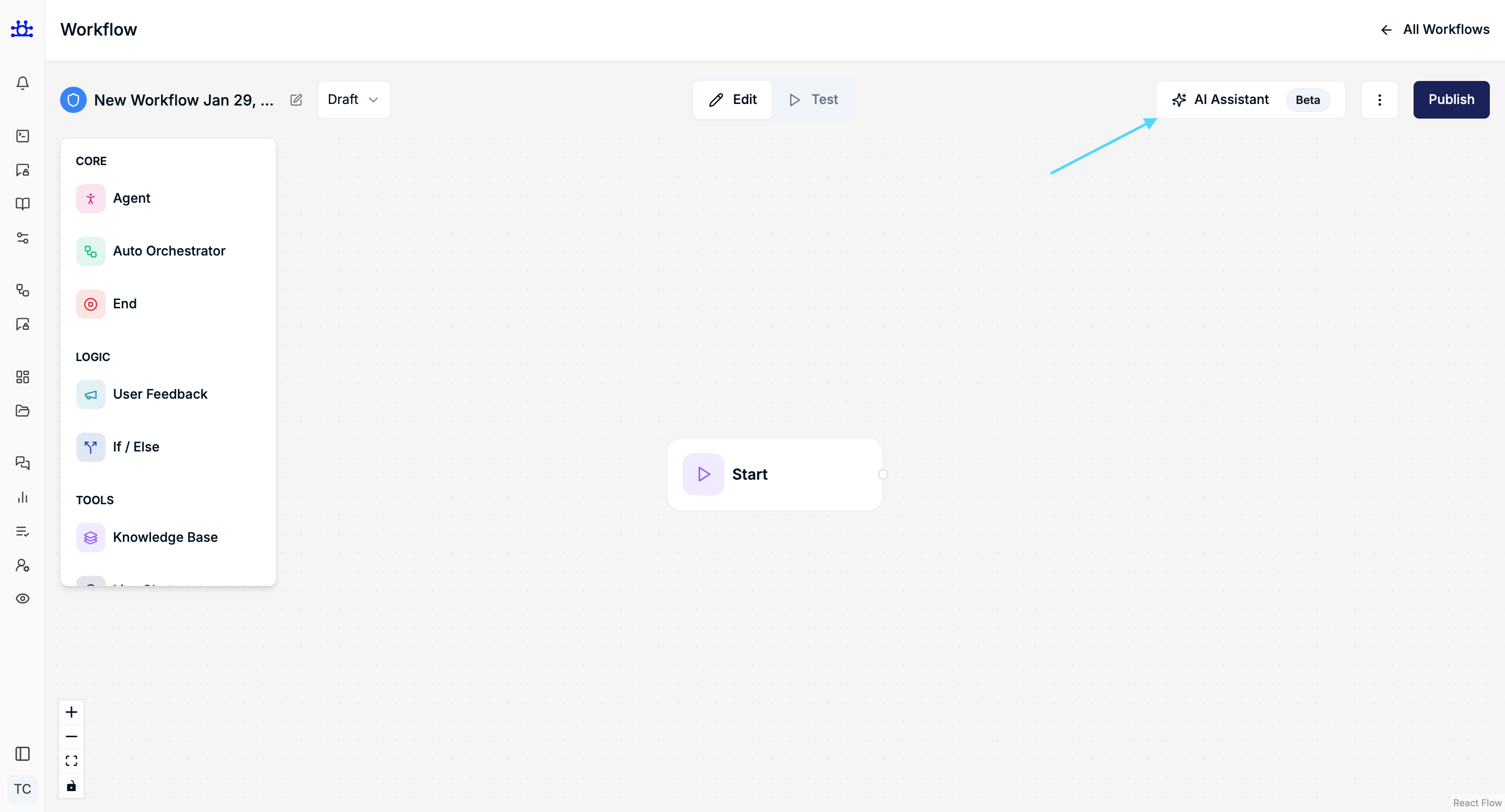
Opening the Assistant
- Click AI Workflow Assistant
- A modal opens with:
- Prompt input field
- Example suggestions
- Close (✖) button
Generating a Workflow
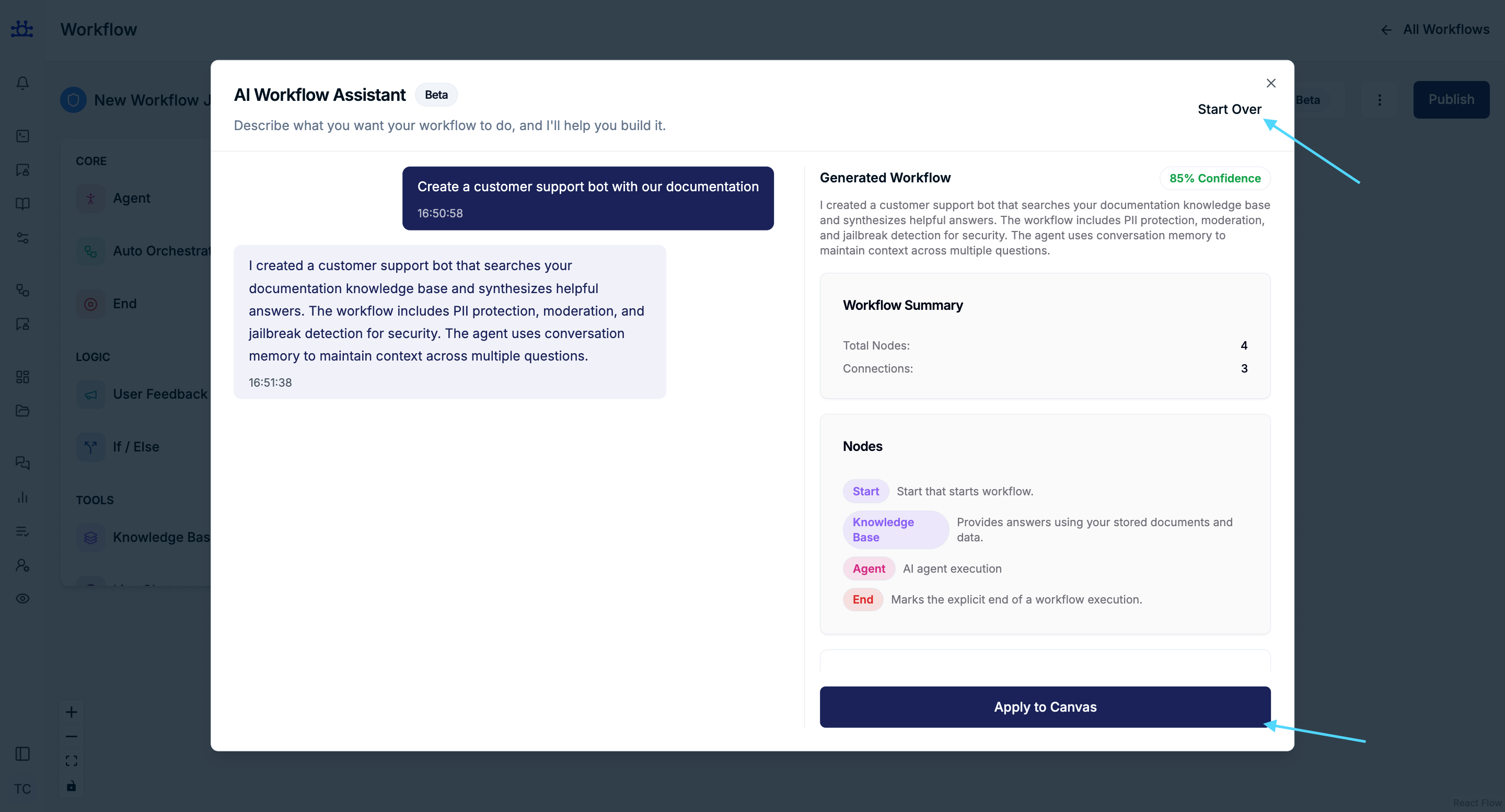
- Enter a prompt (example: Create a customer support bot with documentation).
- Submit the prompt.
- AI generates:
- Workflow summary
- Proposed structure
- Apply to Canvas button becomes available.
Apply to Canvas
- Clicking Apply to Canvas:
- Closes the modal
- Updates the workflow canvas
- Applies changes only to the Draft
- Does not affect Published or Deployed versions
Start Over
- Clears previous AI conversation
- Allows a fresh prompt
Three-Dot Action Menu
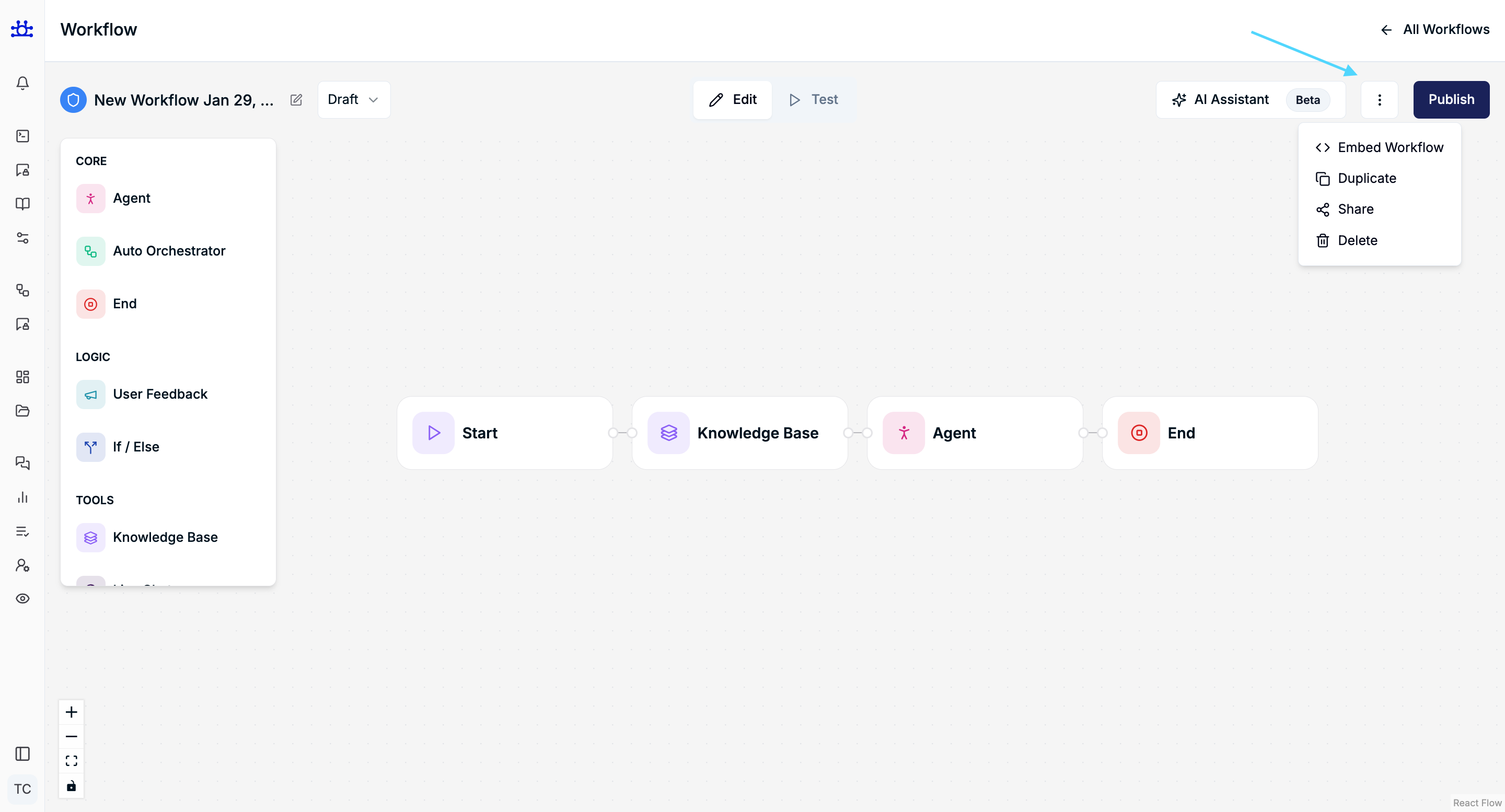
Available options depend on workflow state.
Embed Workflow
- Redirects to Widget Management → Embed & Deploy
- Allows workflow integration using embed code
Duplicate Workflow
- Allowed only for Published / Deployed workflows
- Opens a modal with name suffixed by
(copy) - Duplicated workflow:
- Opens immediately
- Matches original nodes and settings
- Draft workflows cannot be duplicated
Share Modal
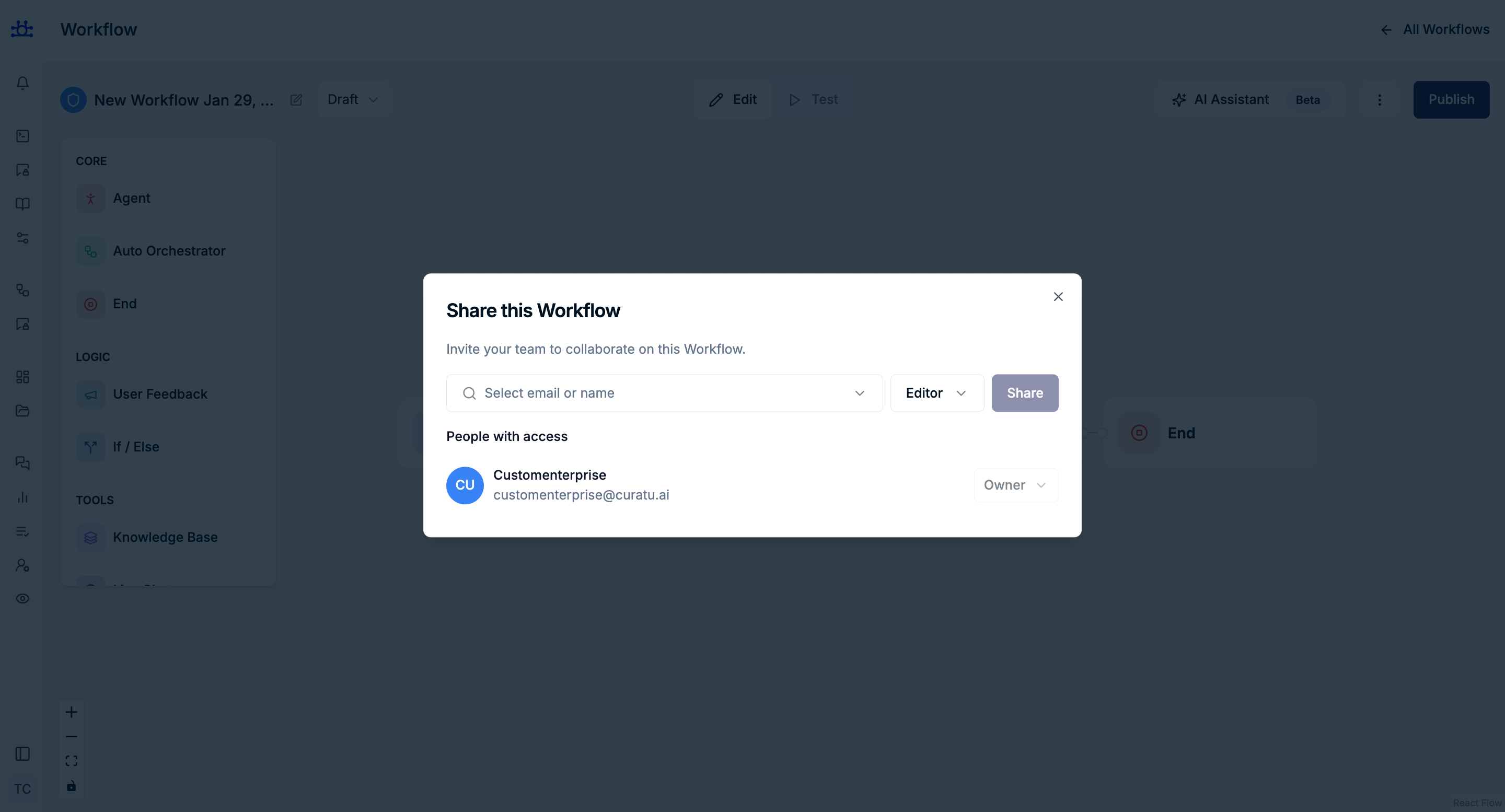
- Shows all users in the organization
- Allows assigning:
- Editor
- Viewer
Editor Permissions
- Can edit nodes and settings
- Can test workflow
- Cannot delete, deploy, duplicate, or share
Viewer Permissions
- Read-only access
- Cannot edit, delete, deploy, duplicate, rename
- Can only test via chatbot
Owner Controls
- Only Owner can change access roles
- Can revoke access at any time
- Changes apply immediately after reload
Deleting a Workflow
Workflow in Use (Associated with API Key)
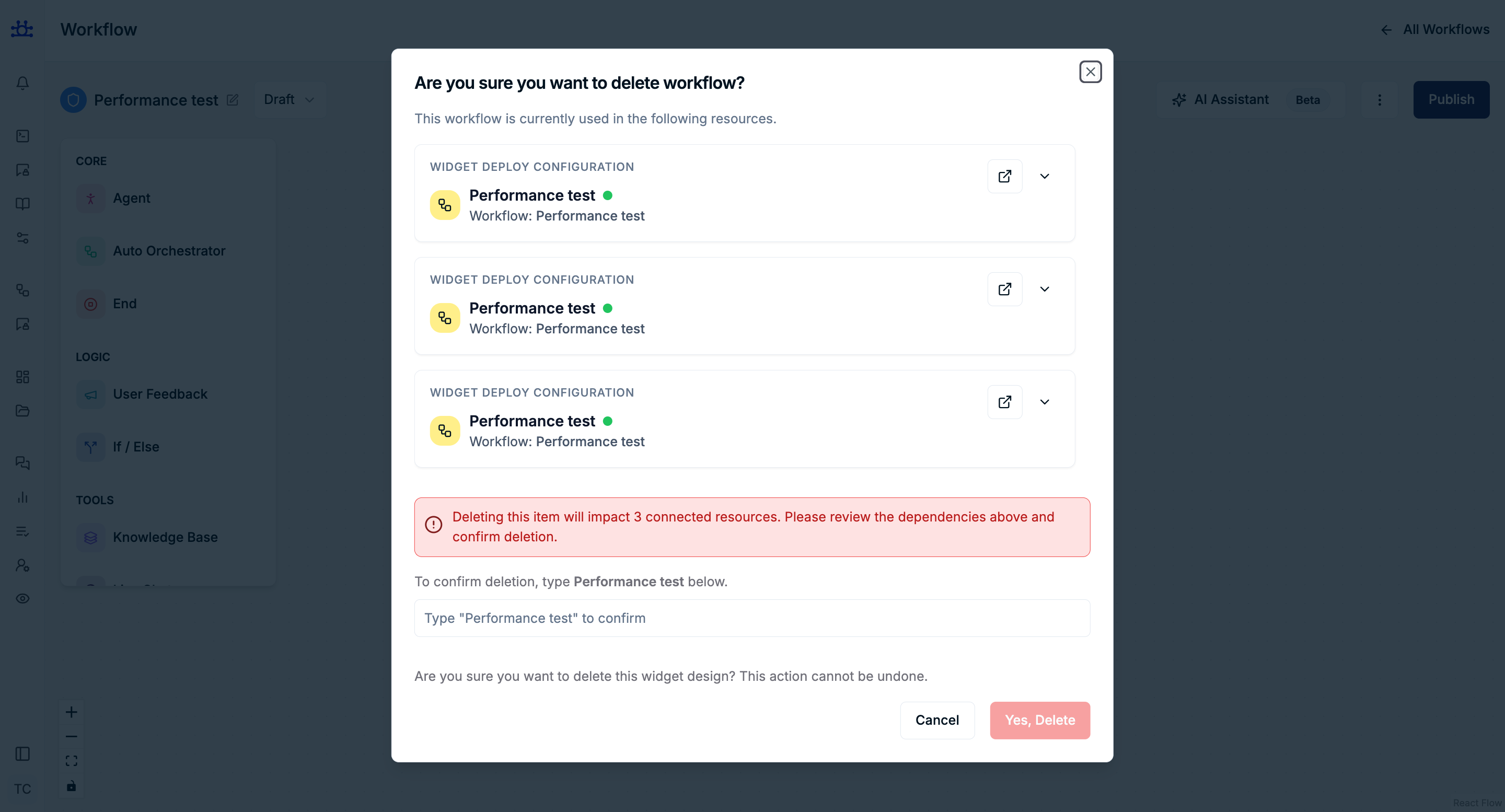
- Delete modal shows usage details
- Requires typing workflow name to confirm
- Deleting removes:
- Workflow
- Associated API keys
- Shared access
- User is redirected to All Workflows page
Workflow Not in Use
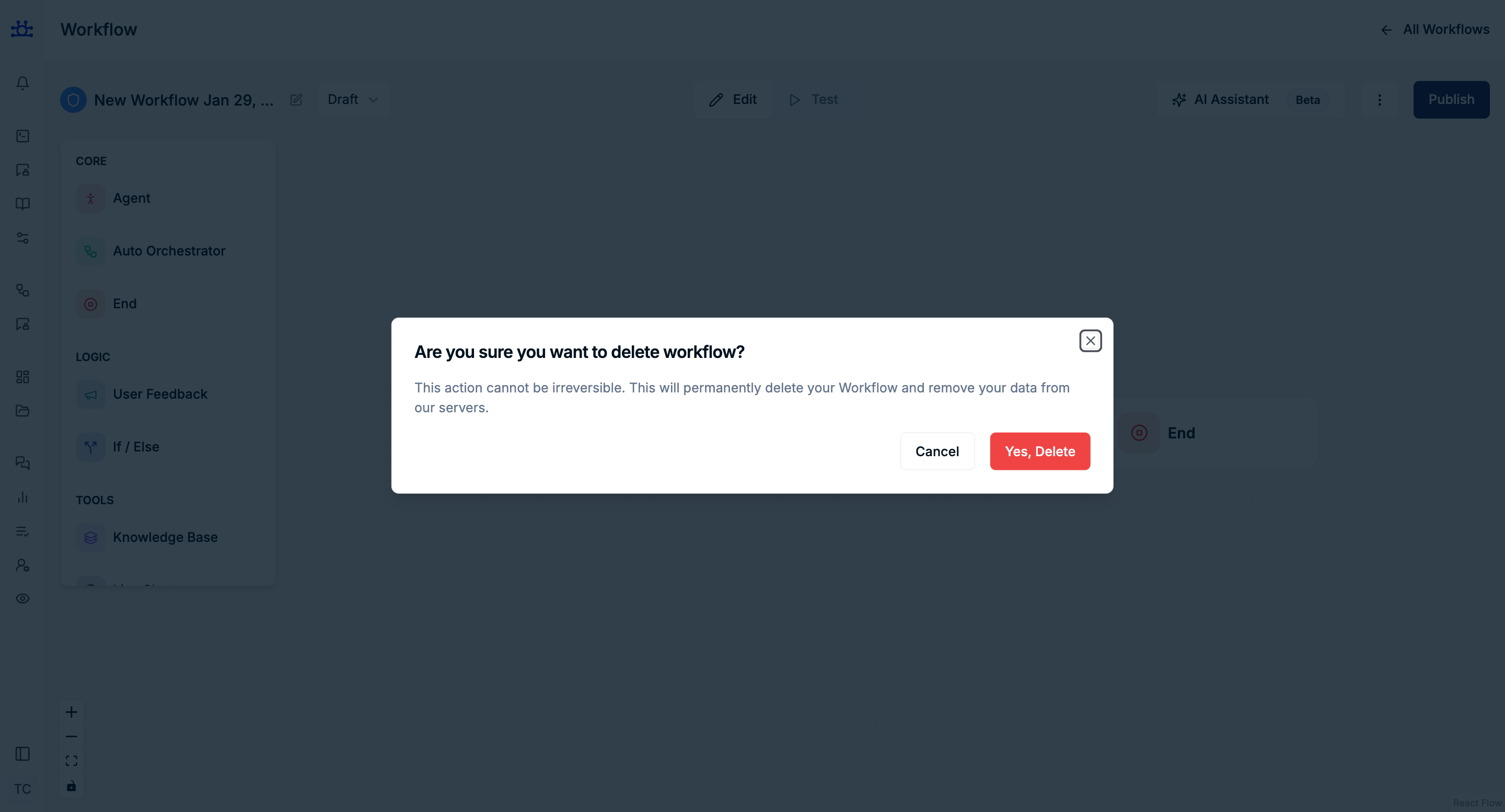
- Simple confirmation modal
- Deletes immediately
- Redirects to All Workflows
Publishing & Deployment
Button Visibility
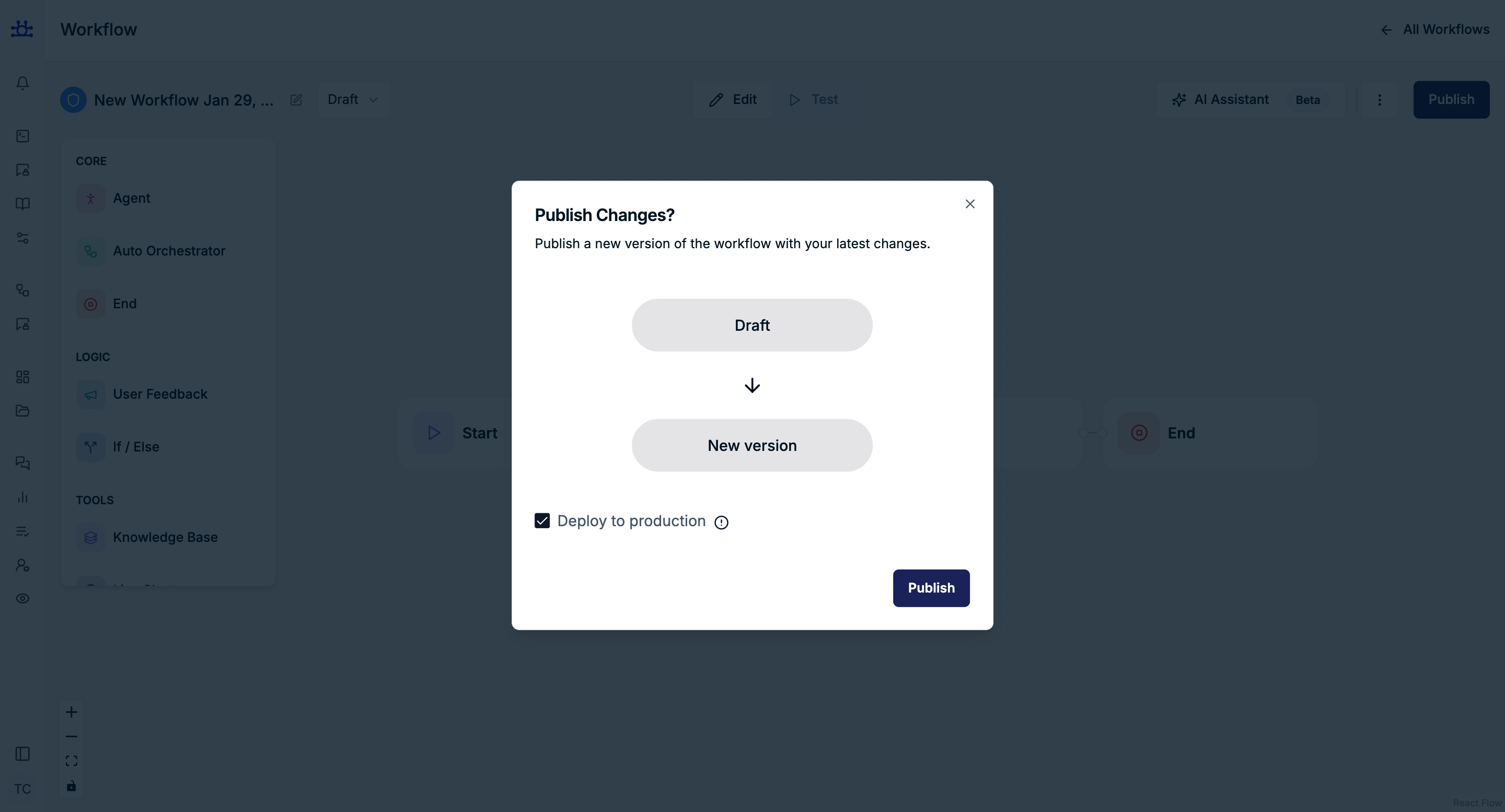
- Draft → Publish button visible
- Published → Deploy button visible
- Deployed → Deploy button disabled
Publish Flow
- Publishing creates a new version
- Optional checkbox:
- Deploy to production
- Publishing without deploy changes status to Published
- Publishing with deploy changes status to Deployed
Deploy Flow
- Published workflows can be deployed later
- Deployment updates existing version status
- No duplicate versions are created
Draft Override Behavior
Creating a Draft from Published/Deployed
- Any structural change creates a new Draft
- Published/Deployed version remains unchanged
Existing Draft Override Modal
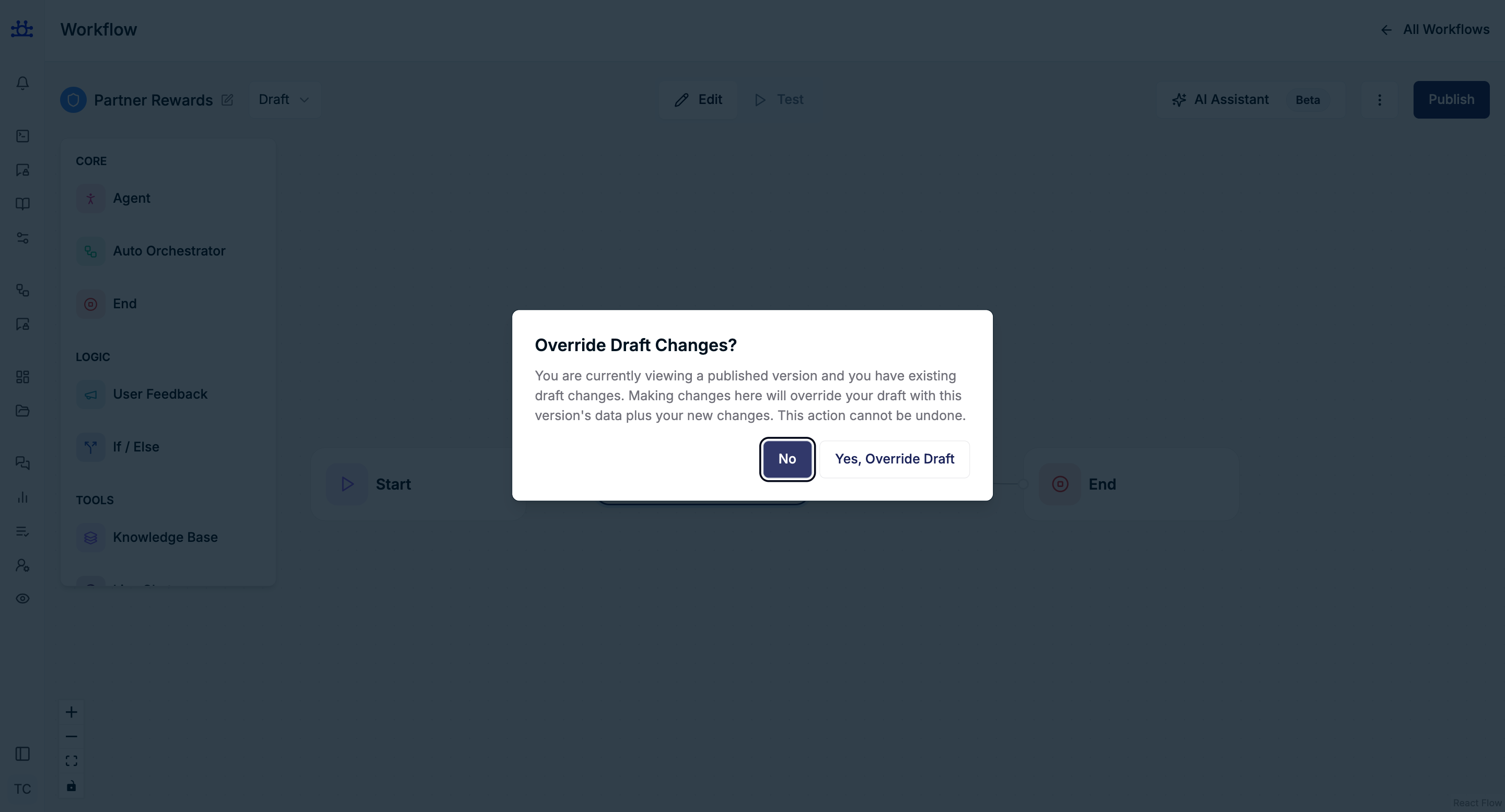
If a Draft already exists:
- System prompts: Override Draft Changes?
- Options:
- No → discard changes
- Yes, Override Draft → replace existing Draft
Version history remains intact in all cases.
Summary
The Workflow Builder provides a complete lifecycle for building conversational automation:
- Visual workflow creation
- Draft and version management
- Safe testing environment
- AI-assisted generation
- Controlled publishing and deployment
- Secure collaboration with role-based access
Node-specific configuration details are documented separately.